![Logo-2.svg]](https://support.pointapp.org/hubfs/Logo-2.svg)
In this article:
- Where to find Volunteer Stats
- Filters
- Totals (key metrics)
- Event Attendance Activity
- Top Volunteers
- Volunteer Ages
- Volunteer Events Activity
- Supported Causes Breakdown
- How to export Volunteer Stats
Where to find Volunteer Stats
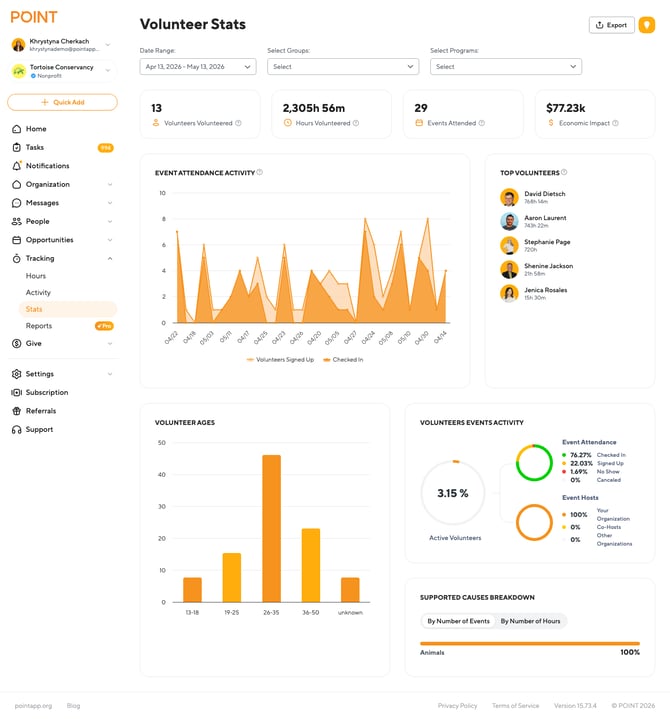
In the admin dashboard, go to Tracking, then select Stats. This page shows an aggregate view of your organization's volunteer activity. You can adjust the data shown by applying filters at the top of the page.
📝 Note: Volunteer Stats are available on all plans. If you need more detailed and customizable reports, check out the Pro Reports feature.
Filters
Use the filters at the top of the Stats page to focus on a specific time period, group, or program. All stats and charts on the page will update based on your selection.
- Date Range: Set a custom date range manually, choose from the calendar, or use a quick option such as one week, one month, one year, or since join date. Available on all plans.
- Select Groups: Filter the stats to events that are private for a specific group of users. Available on all plans.
- Select Programs: Filter the stats to events that belong to a specific program. Available on the Pro plan only.
💡 Tip: Filters apply to the entire page, so all the totals, charts, and breakdowns below reflect what you've selected.
Totals (key metrics)
At the top of the page, you'll see four high-level numbers that summarize your organization's activity for the selected filters.
- Volunteers Volunteered: the number of people in your organization who volunteered for events on POINT and have approved hours.
- Hours Volunteered: the total number of hours volunteered during the selected time period.
- Events Attended: the total number of past events attended during the selected time period.
- Economic Impact: the dollar value of your volunteer impact. It's calculated by multiplying total volunteer hours by the average value of a volunteer hour. POINT uses the value set by The Independent Sector by default.
💡 Tip: To change the dollar value used to calculate Economic Impact, owners can update it under Settings.
Event Attendance Activity
This chart shows how many volunteers signed up for events versus how many actually attended, plotted over time.
- The light orange area shows Volunteers Signed Up.
- The darker orange area shows Checked In volunteers (those who attended).
Attendance is calculated when volunteers are checked in for an event, so make sure your team checks volunteers in regularly to keep this data accurate.
Top Volunteers
A ranked list of the volunteers who contributed the most hours during the selected period. Each entry shows the volunteer's name and total hours.
This block is useful for recognition programs, thank-you messages, or identifying your most engaged volunteers.
Volunteer Ages
A bar chart showing the age breakdown of volunteers who attended events during the selected period. Age groups are:
- 13 to 18
- 19 to 25
- 26 to 35
- 36 to 50
- Unknown (volunteers who haven't shared their age)
This is helpful for understanding your volunteer demographics and reporting on youth or adult engagement.
Volunteer Events Activity
This block has two visualizations:
Active Volunteers (percentage): the percentage of your total contacts who actually attended events during the selected period. For example, if 3.15% is shown, it means 3.15% of your contacts have attended at least one event.
Event Attendance breakdown: a donut chart showing how attendance is distributed across statuses:
- Checked In: volunteers who attended.
- Signed Up: volunteers who registered but didn't check in.
- No Show: volunteers who registered but didn't attend.
- Canceled: sign-ups that were canceled.
Event Hosts breakdown: a donut chart showing how events were hosted:
- Your Organization: events hosted by your organization.
- Co-Hosts: events co-hosted with another organization.
- Other Organizations: events hosted by other organizations.
Supported Causes Breakdown
A breakdown of which causes your organization is focused on, based on the events you've created. You can toggle between two views:
- By Number of Events: shows the percentage of your events tied to each cause.
- By Number of Hours: shows the percentage of total volunteer hours contributed to each cause.
Use this to visualize where your organization is putting its volunteer effort and to demonstrate cause focus in reports or grant applications.
How to export Volunteer Stats
You can export the entire Stats page as a PDF report. This is useful for sharing with your board, including in grant applications, or saving snapshots of performance over time.
For step-by-step instructions, see How to export Volunteer Stats as a PDF.
Questions? Email us at support@pointapp.org.