![Logo-2.svg]](https://support.pointapp.org/hubfs/Logo-2.svg)
We've built 6 ready-to-use reports that cover most of the needs organization admins have: Event List with Volunteers, Hours Report, Volunteer Leaderboard, Volunteer Details, Youth Volunteering by Event, Application Responses
In this article:
Where to find Reports
To access Reports, navigate to Tracking → Reports in the admin menu. You'll see all 6 available reports displayed as cards, each with a short description of what it covers.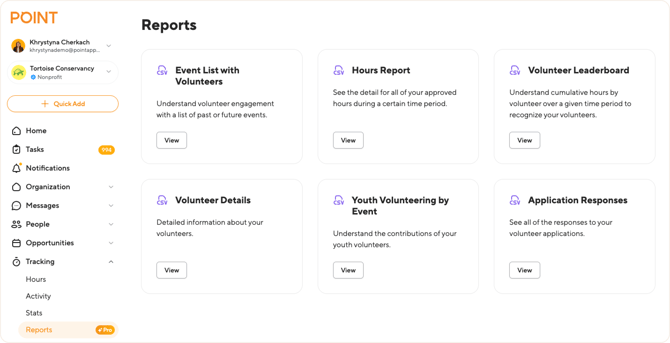
Click View on any report card to open it and start customizing.
How Reports work
All 6 reports share the same setup flow. Once you understand how to generate one, you'll know how to generate all of them the only difference is the fields and filters available for each report type.
Step 1: Select the fields
At the top of every report page, you'll see a list of fields you can include in your export. Check the boxes for the data you need, or select All fields to include everything. Available fields vary depending on the report.
Step 2: Apply filters
Below the fields, you can narrow down your data using filters:
- Date Range: choose the time period the report should cover.
- Program: filter results by a specific program (optional).
- Volunteer Group: filter results by a specific group (optional).
📝 Note: The available filters vary depending on the report. The list above shows the most common ones — each report's section below mentions its specific filters.
Step 3: Generate the report
Click Generate Report. The CSV file will download automatically to your device.
Step 4: Access past reports
Every report page has a Report History section at the bottom that stores your previously generated exports including the date they were created and the filters applied. You can re-download any of them at any time without regenerating.
Event List with Volunteers
What it's for: Understand volunteer engagement across past or upcoming events. This report gives you a full picture of event participation — total spots, who signed up, who actually checked in, and total hours contributed.
Use it when you want to:
- Review how well-attended your events were over a specific period.
- Compare signed-up vs. checked-in volunteers to track no-show rates.
- See total hours volunteers contributed across events.
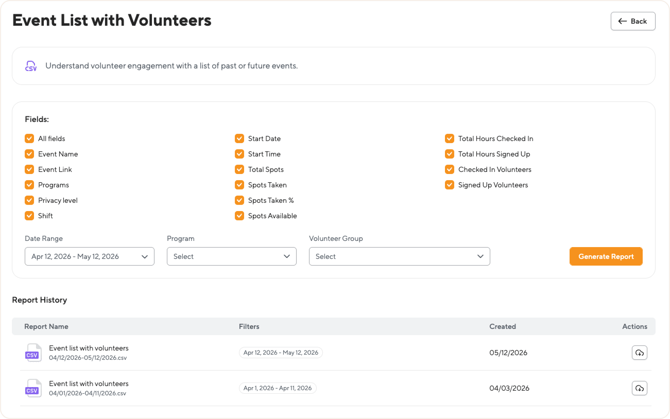
Available fields:
- Event Name: the title of the event.
- Event Link: direct link to the event in POINT.
- Programs: which program(s) the event belongs to.
- Privacy level: visibility setting of the event (public, private, secret).
- Shift: shift name .
- Start Date and Start Time: when the event begins.
- Total Spots: total volunteer spots available.
- Spots Taken: how many volunteers signed up.
- Spots Taken %: fill rate as a percentage.
- Spots Available: remaining open spots.
- Total Hours Checked In: actual hours logged by volunteers who checked in.
- Total Hours Signed Up: projected hours based on signups.
- Checked In Volunteers: names of volunteers who attended.
- Signed Up Volunteers: names of volunteers who registered.
Available filters: Date Range, Program, Volunteer Group.
Hours Report
What it's for: Get a detailed breakdown of all approved volunteer hours within a specific time period. This is the report you'll use most often to understand where your hours are coming from, who's logging them, and across which programs or events.
📝 Note: This report includes approved hours only. Pending or rejected submissions won't appear in the export.
Use it when you want to:
- See total approved hours across your organization for a given period.
- Track how hours are being logged by admins, through events, via self-submission, or through kiosks.
- Pull detailed volunteer information alongside hour records (like t-shirt size or language skills) for event planning or reporting.
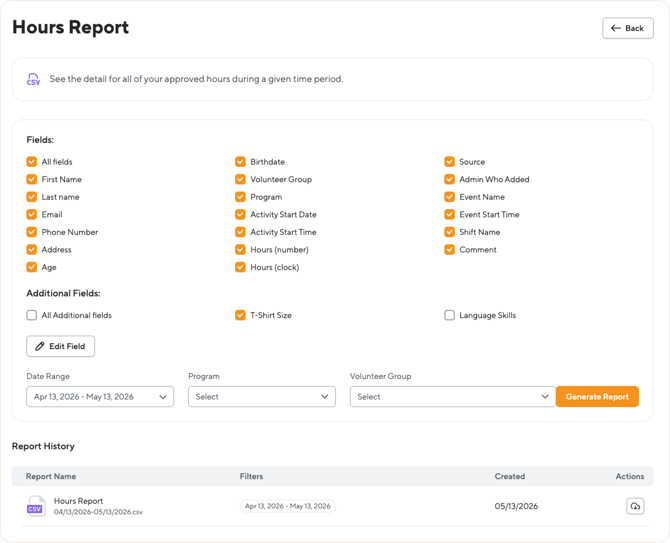
Available fields:
- First Name, Last Name, Email, Phone Number, Address, Age, Birthdate: basic volunteer contact and demographic information.
- Volunteer Group: which group(s) the volunteer belongs to.
- Program: the program the hours are associated with.
- Activity Start Date and Activity Start Time : when the volunteer activity began.
- Hours (number): total hours logged as a decimal number (e.g., 2.5).
- Hours (clock): total hours logged in clock format (e.g., 2:30).
- Source: how the hours were recorded. Possible values:
- Admin: an admin manually created the hours record.
- Event: hours were generated from event attendance (check-in/check-out).
- Volunteer: the volunteer self-submitted hours for approval.
- Kiosk: hours were logged through a check-in station with Non-Event Time Tracking enabled.
- Admin Who Added: the admin who created or approved the record.
- Event Name, Event Start Time, Shift Name: event details if the hours are tied to an event.
- Comment: any notes attached to the hours record.
Additional Fields (custom form fields)
The Hours Report has one extra capability that other reports don't: Additional Fields. These let you pull in answers from any custom form field your organization has created like event questions or application questions volunteers answered when signing up.
For example, if your events ask volunteers for their t-shirt size, meal preference, or language skills, you can include those answers right alongside their hours data. This makes the report flexible enough to cover almost any reporting need without needing a separate export.
How to add custom fields:
- Click + Add Field under the Additional Fields section.
- A Pick Fields window will open, showing all the custom form fields available in your organization.
- Check the boxes for the fields you want to include and click Add.
The selected fields will appear under Additional Fields in the main view. You can edit your selection anytime by clicking Edit Field.
Available filters: Date Range, Program, Volunteer Group.
Volunteer Leaderboard
What it's for: Quickly see which volunteers have contributed the most hours over a given time period. Use it to identify your top contributors and recognize them whether through awards, shout-outs, or thank-you messages.
Use it when you want to:
- Identify your most active volunteers for recognition programs.
- See cumulative hours per volunteer across all their activity.
- Track how many shifts each volunteer has attended over a period.
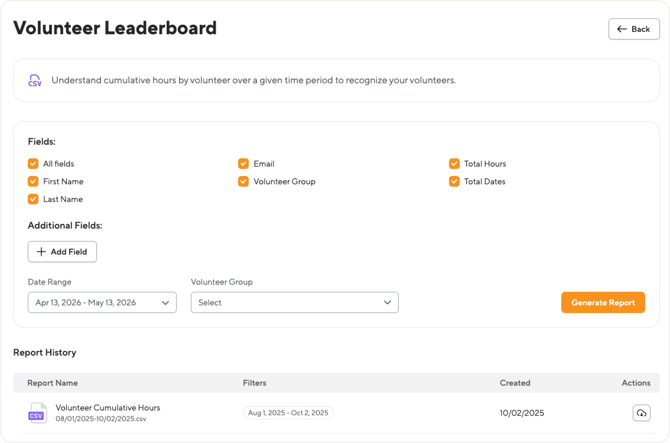
Available fields:
- First Name, Last Name, Email: basic volunteer contact information.
- Volunteer Group: which group(s) the volunteer belongs to.
- Total Hours: cumulative hours the volunteer has logged within the selected date range.
- Total Dates: the number of shifts the volunteer attended within the selected date range.
Additional Fields (custom form fields)
Just like the Hours Report, the Volunteer Leaderboard also supports Additional Fields letting you pull in answers from custom form fields your organization has created (like t-shirt size, language skills, or any other event/application question).
Click + Add Field to open the Pick Fields window, check the fields you want to include, and click Add. This is especially useful when preparing recognition events you can pull volunteer hours and their t-shirt sizes in one go.
Available filters: Date Range, Volunteer Group.
What it's for: Get comprehensive profile information about your volunteers from contact details and demographics to dietary restrictions, t-shirt sizes, and program memberships. This is the most detailed report when it comes to volunteer information.
Use it when you want to:
- Build a complete volunteer roster with contact and profile data.
- Prepare for events that need volunteer details (allergies, t-shirt sizes, emergency contacts).
- Analyze your volunteer base by demographics, location, or volunteer groups.
- Find volunteers who joined in a specific period to track recruitment growth.
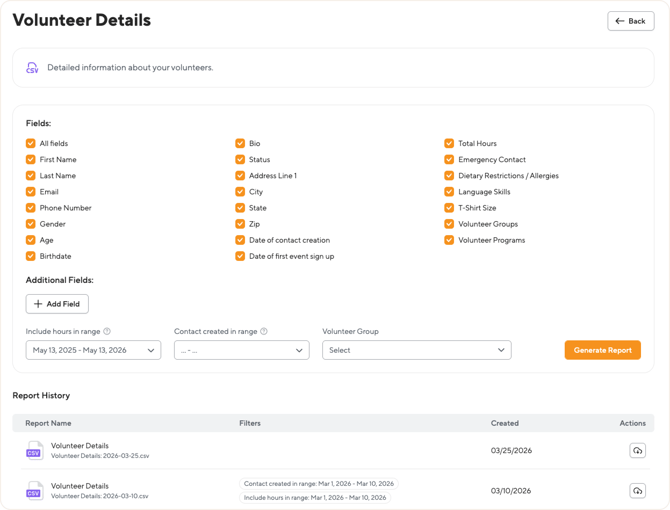
Available fields:
- First Name, Last Name, Email, Phone Number basic contact information.
- Gender, Age, Birthdate: demographic information.
- Bio: the volunteer's personal bio from their profile.
- Status: current account status of the volunteer.
- Address Line 1, City, State, Zip: full address details.
- Date of contact creation: when the volunteer was added to your organization.
- Date of first event sign up: when the volunteer first signed up for one of your events.
- Total Hours: cumulative hours the volunteer has logged (within the date range you specify see filters below).
- Emergency Contact: emergency contact information.
- Dietary Restrictions / Allergies: any dietary needs the volunteer has shared.
- Language Skills: languages the volunteer speaks.
- T-Shirt Size: the volunteer's t-shirt size.
- Volunteer Groups: all groups the volunteer belongs to.
- Volunteer Programs: all programs the volunteer is part of.
Additional Fields (custom form fields)
Like the Hours Report and Volunteer Leaderboard, this report also supports Additional Fields. Click + Add Field to include answers from any custom form fields your organization has created.
Filters
This report has two separate date filters, which work differently make sure you're using the right one:
- Include hours in range: this controls the Total Hours field only. It defines the time period over which hours are counted. For example, if you set this to "last 3 months," the Total Hours column will only show hours logged in those 3 months.
- Contact created in range: this filters which volunteers appear in the report. Only volunteers whose contact records were created within this period will be included. Leave it empty to include all volunteers regardless of when they joined.
- Volunteer Group: filter the report to a specific group.
Youth Volunteering by Event
What it's for: Track the contributions of your youth volunteers across events. This report helps you understand how younger volunteers are participating useful for grant reporting, youth program impact, or any context where you need to demonstrate engagement with a specific age group.
Use it when you want to:
- Report on youth volunteer engagement to funders or stakeholders.
- Measure the impact of youth-focused programs.
- See which events attract the most young volunteers.
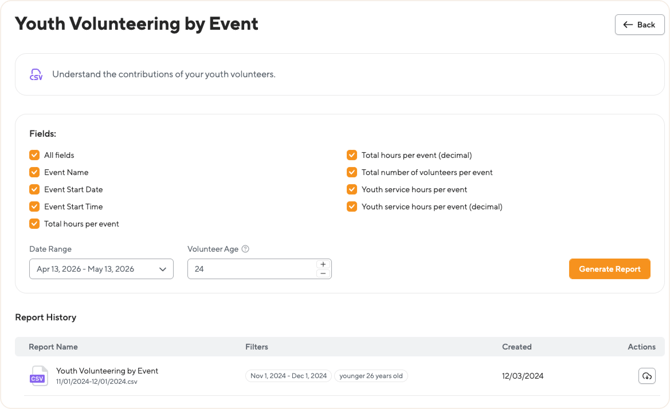
Available fields:
- Event Name: the title of the event.
- Event Start Date and Event Start Time: when the event took place.
- Total hours per event: total hours logged by all volunteers at the event (clock format).
- Total hours per event (decimal): same value as a decimal number (e.g., 2.5).
- Total number of volunteers per event: total volunteer headcount at the event.
- Youth service hours per event: hours contributed specifically by volunteers within the age range you specify (clock format).
- Youth service hours per event (decimal): same value as a decimal number.
Filters
- Date Range: the time period the report should cover.
- Volunteer Age: set the maximum age that defines "youth" for this report. For example, setting this to 18 will include volunteers aged 18 and younger in the youth service hours calculation.
💡 Tip: Because the age threshold is customizable, you can run this report multiple times with different cutoffs depending on your reporting needs — for example, age 17 and under for K-12 programs, or 24 and under for broader youth definitions.
What it's for: Export all responses submitted to a specific volunteer application. Unlike the other reports, which pull data across your whole organization, this one is built around a single application letting you see every question and every answer in one place.
Use it when you want to:
- Review applicant responses outside of POINT (in spreadsheets, with your team, or in external tools).
- Audit who has applied and where they are in the review process.
- Analyze responses to specific application questions in bulk.
How this report is different
This report works a little differently from the others, so it's worth understanding before you generate it:
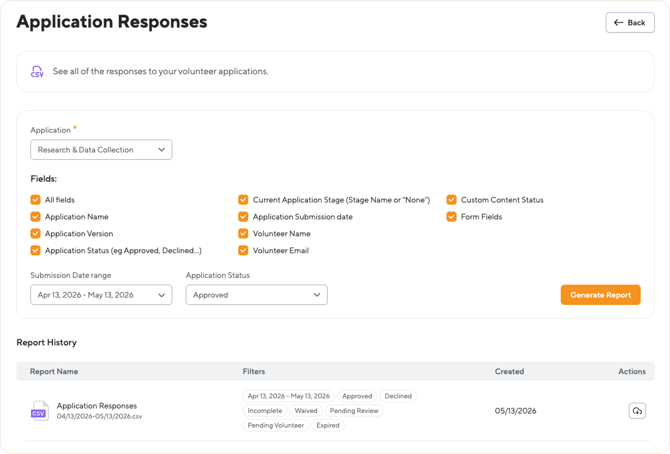
- You must select an application first. The Application dropdown at the top is required pick which application you want to pull responses from. The dropdown shows all applications created in your organization.
- Only the latest published version is exported. If you've updated your application over time (added or removed questions), the report will reflect the most recent active version, not historical versions.
- Form Fields is where the actual answers live. Checking the Form Fields option includes every question and answer from the application's stages in your export. This is usually the main reason you'd run this report.
Available fields:
- Application Name: the name of the application.
- Application Version: the version number of the application at the time the response was submitted.
- Application Status: the overall status of the response (e.g., Approved, Declined).
- Current Application Stage: which stage the response is currently in, or "None" if it's completed/closed.
- Application Submission date: when the volunteer submitted the application.
- Volunteer Name and Volunteer Email: basic identification of the applicant.
- Form Fields: all questions and answers from the application's stages. This is what gives the report its real value.
- Custom Content Status: status of any custom content sections within the application (this field appears for applications that include custom content).
Filters
- Submission Date range - only responses submitted within this date range will be included.
- Application Status - filter responses by their status. You can select one or multiple values:
- All: include every response.
- Approved: applications you've accepted.
- Declined: applications you've rejected.
- Incomplete: applications volunteers started but haven't submitted.
- Waived: applications marked as waived.
- Pending Review: awaiting your team's review.
- Pending Volunteer: awaiting action from the volunteer.
- Expired: applications that passed their deadline.