![Logo-2.svg]](https://support.pointapp.org/hubfs/Logo-2.svg)
Method 1: Linking from the Program Settings
This is the best method if you are already in the process of creating or updating a program.
-
Navigate to the left-side menu, click "Organization", and select "Programs".
-
Click "+ Create Program" to start a new one, or click an existing program and hit the pencil icon to edit it.
-
In the settings window, locate the "Program Application" dropdown menu.
-
Select the specific application you want to require for this program.
-
Click "Create Program" (or "Edit Program") to save your changes.
📚 Need more details on program settings? Check out our full guide: How do you add, edit, or delete a program?
Method 2: Linking from the Application Builder
This is the best method if you have just finished building a new application and want to immediately assign it to one or multiple programs.
-
Navigate to your application builder (where you create and manage your custom applications).
-
Create a new application or open an existing draft.
-
In the application settings, look for the option to assign the application to a program.
-
Select the program (or multiple programs) you want this application to be associated with.
-
Save your application changes.
📚 Want to learn more about building applications? Read our complete tutorial: How to Create and Configure an Application?
💡 What happens when they are linked?
Once linked, volunteers will see an "Apply" button when viewing your Program page.
Additionally, if a volunteer tries to sign up for any event that is categorized under this program, the system will automatically prompt them to complete the required application first!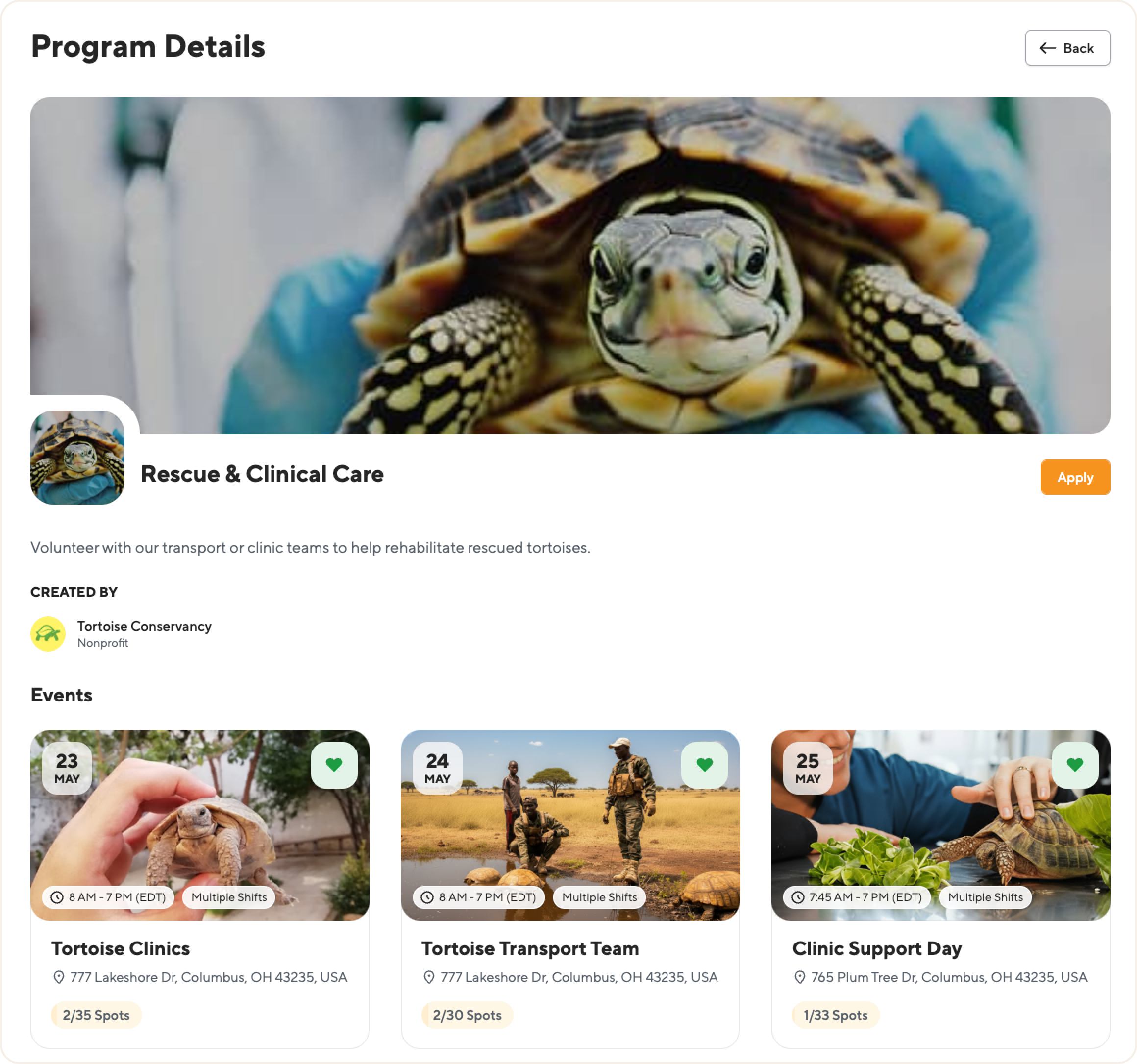
Questions? Email us at support@pointapp.org.