![Logo-2.svg]](https://support.pointapp.org/hubfs/Logo-2.svg)
How do I add a new program (video)?
How can I edit an existing program?
How to Add a Program (see video below):
Step 1: Go to your left-side menu and click “Organization”, then select “Programs”.
Step 2: Click the orange “+ Create Program” button in the top right corner.
Step 3: The "Create Program" window will appear. Fill out the following details to set up your program:
-
Name: Enter the title of your program.
-
Description: Provide details about what the program is about and what volunteers can expect.
-
Parent Program: Select an existing program from this dropdown if you want to make your new program a subprogram.
-
Program Application: Select an application from the dropdown menu to require it for this program.
-
How it works: When volunteers encounter this program, they will see an "Apply" button and must complete the application. If a volunteer tries to sign up for an event included in this program, the system will also require them to complete this application first
(Note: Event-level application settings may also influence this flow).
-
👉 Learn How to Create and Configure an Application? (Pro)
-
Display Program on Widget and POINT Page (Yes/No):
Toggle this to control visibility. If set to “No,” the program will not appear in the “Select Programs” list on your website widget.
👉 Learn how to set up the Website Widget. -
Pick a Color: Choose a brand color for your program.
-
Program Image: Upload an image that will display on the admin program list and act as the program's logo on the public Program page.
-
Recommended minimum image size: 96x96 pixels.
-
-
Background Image: Upload an image that will display as the tile on the volunteer Programs list and as the background image on the public Program page.
-
Recommended minimum image size: 1120x630 pixels.
-
-
Documents: Attach relevant files by either selecting an existing document from your library or uploading a new one.
Step 4: The final step is to click the orange "Create Program" button at the bottom of the window.
Congratulations! 🎉 Your program has been successfully created, and volunteers in your organization will now be able to view the program-specific data and any associated subprograms.How to Add a Program (video):
How to Edit a Program:
-
Navigate to the left-side menu, click "Organization", and select "Programs".
-
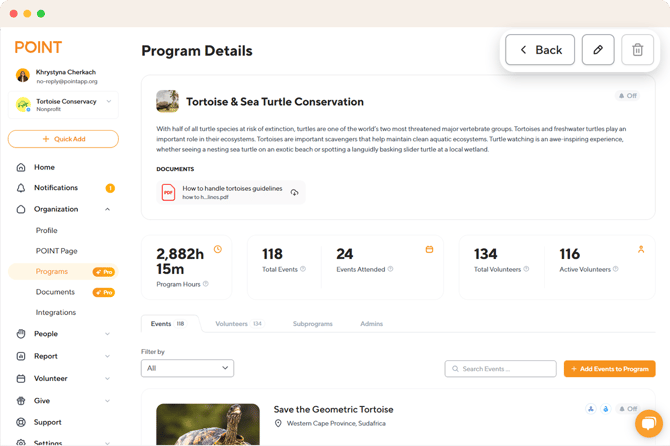
Find the program you want to edit and click on it to open the Program Details page.
-
On the Program Details page, click the pencil icon to open the editing window.
-
Make your desired changes. You can update any of the program's details, such as the name, description, color, and images, or even turn the program into a subprogram by selecting a new Parent Program.
-
Once you've made your changes, click the orange "Update Program" button to save them.
How to a Delete:
-
Navigate to your left-side menu, click "Organization", and select "Programs".
-
Find the program you want to remove and click on it to open the Program Details page.
-
On the Program Details page, click on the trash can icon.
-
A popup will appear asking you to confirm your action. Click "Delete program" to permanently remove it.
*Note: A program cannot be deleted if there are volunteers with confirmed hours for events included in that program or its subprograms.
Questions? Email us at support@pointapp.org.