![Logo-2.svg]](https://support.pointapp.org/hubfs/Logo-2.svg)
What is an Application?
An Application is a form that an admin can require volunteers to complete when they join the organization or a specific program.
To create a new application, follow these steps:
-
Go to the People menu on your left sidebar and select Applications.
-
Click the "Create New" button to begin the process.
The application creation process consists of two main steps: configuring the basic rules (Application Settings) and designing the actual content of the form (Application Flow).
Step 1: Application Settings
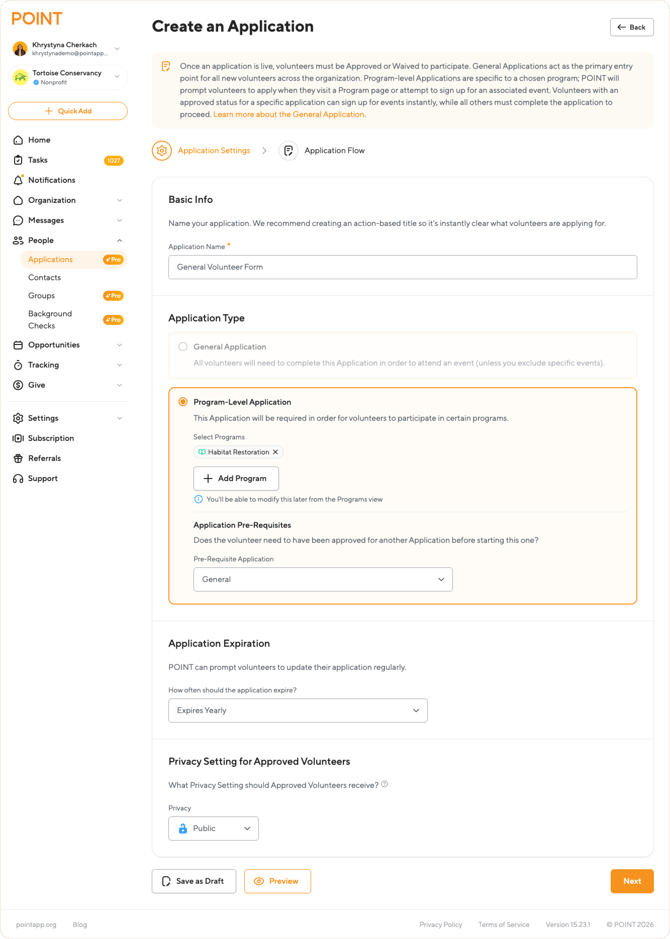
On the first screen, you will define the core rules for your application:
1. Application Name
Give your application a clear, action-based title so volunteers instantly understand what they are applying for.
2. Application Type Choose how broad or specific this application should be:
-
General Application: Think of this as the main entry point to your organization. It is the primary application volunteers must complete to join your org and access your events.
The applicant list for this form will include all contacts in your organization with their respective application statuses.
(Note: You can only have one General Application defined at a time).
-
Program-Level Application: Select this if the application is specific to certain roles or programs. You can create as many of these as you need.
-
Select Programs: Click the "+ Add Program" button to link this application to one or more specific programs.
-
Application Pre-Requisites: (Available only for Program-Level Applications).
This setting allows you to connect applications and create a "chain." For example, you can require a volunteer to be approved for your General Application before they can fill out this new Program-Level Application.
You can also select "No Pre-Requisite Application" if volunteers can start this application right away without any prior approvals.
-
3. Application Expiration POINT can prompt volunteers to update their application regularly. Under How often should the application expire?, you can choose "No Expiration" or select "Expires Yearly".
4. Privacy Setting for Approved Volunteers Choose the default privacy status for volunteers once they are approved: Public or Private. A volunteer's privacy setting impacts which organization events they can see.
Step 2: Configure Your Application Flow
Once you have set up your basic Application Settings, click on the Application Flow tab at the top of the screen (or click the "Next" button at the bottom).
-
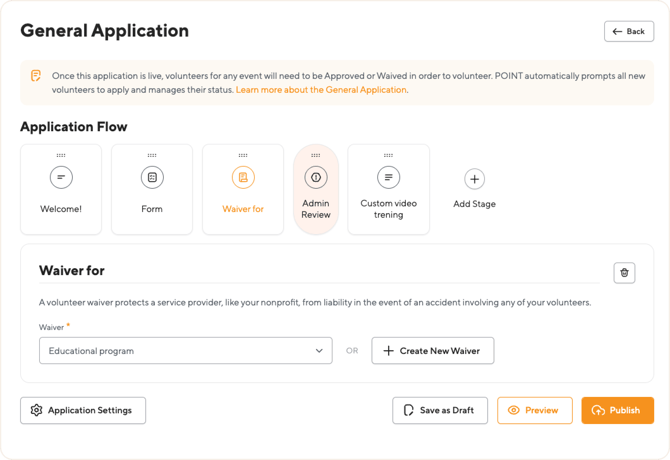
The POINT Application Builder allows adminіs to create custom volunteer registration workflows by assembling a series of modular steps, known as Stages.
Please, Click "Add Stages"
-
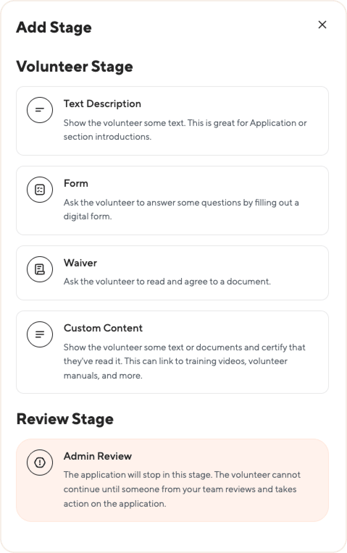
An application is composed of two primary types of stages: Volunteer Stages (visible to the volunteer) and Review Stages (visible only to the admin). You can arrange and combine these stages in any order to meet your organization's specific onboarding needs.
-
Volunteer Stages
Volunteer Stages are the interactive components that the volunteer must complete sequentially. These stages are used to inform the volunteer, collect data, and secure necessary agreements.
Admins can select the required steps and define their order.
Text Description
Used to display introductory or instructional text to the volunteer. This is ideal for application or section introductions.
Form
Prompts the volunteer to answer a set of predefined questions by filling out a digital form.
Waiver
Requires the volunteer to read a document (e.g., Liability Waiver) and explicitly agree to its terms before proceeding.
Custom Content
Displays text, documents, or links to external resources (e.g., training videos, volunteer manuals). The volunteer must certify that they have read or reviewed the content.
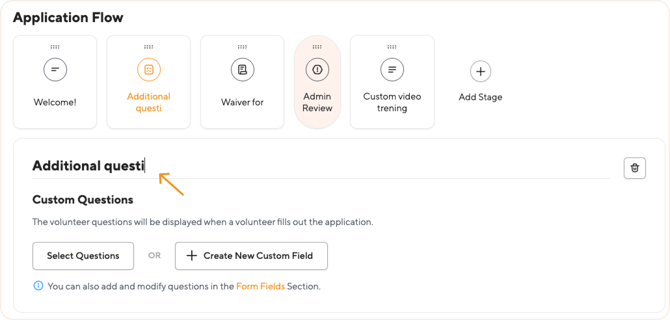
Note: the names of the stages are editable. Click on the field with the name to remove it and type the one you need.
-
Review Stage (Admin Intervention)
The Admin Review stage serves as a mandatory pause point in the application workflow, requiring manual intervention by an admin.
Admin Review Stage
Function: The application will stop when the volunteer reaches this stage.
Volunteer Status: The applications needing review will show up in your "Pending Review" section.The volunteer cannot continue the application process until an admin reviews their preceding submissions and takes action (approving or denying the application).
Purpose: This stage is used when the admin needs to manually vet a volunteer's answers, run a background check, or perform any manual verification before allowing the volunteer to be fully onboarded.
-
The Automatic Approval Flow
If the admin does not include the Admin Review stage anywhere in the application sequence, the application will be automatically approved as soon as the volunteer successfully completes the final Volunteer Stage.
9. Locate the "Publish" button positioned in the lower right corner of the application interface.
In the pop-up menu, select the status of the applications for the existing volunteers:
- Keep all application statuses - existing volunteers will keep the status they had with the previous application version.
- Waive application for all existing volunteers - Any volunteer in your contacts will receive the "Waived" application status and be allowed to volunteer without a completed application. You can send these volunteers an application at any time.
- Existing volunteers should complete an application - volunteers must complete an application during their next contact with the organization. Please note that we do not auto send this application to existing volunteers. You can send these volunteers an application at any time.
Once this application is live, volunteers for any event will need approval to participate. POINT automatically prompts all new volunteers to apply and manages their application status.
10. Save as Draft. If you are not ready yet to publish the application, save it as a draft first by clicking on the Save as draft button.
How do you add Program-Level Applications (see video):
How do you edit Applications?
There are two primary ways to edit your Application:
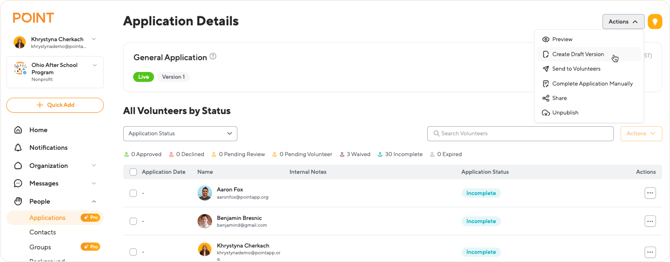
1. Create a Draft (Recommended): You click Actions > Create Draft Version. This allows you to work on updates privately while the current Application remains live and accessible to volunteers. When ready, click Publish to replace the old version.
2. Unpublish: You click Actions > Unpublish. This takes the Application offline, creating a single draft you can edit and then re-Publish when finished.
You can read the full, step-by-step guide here: Editing and Managing Application
How do you delete an Application?
1. Navigate to the People menu and select the Applications option to access the Application Details page.
2. Find the “Actions” button in the upper right corner, click, and select the “Unpublish” option.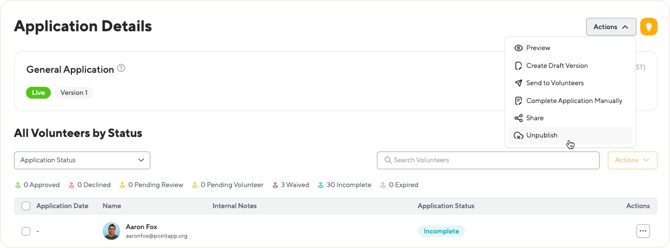
There can be only one draft. If there’s already a draft saved, POINT offers you to keep your current draft or replace it with the live version.
3. Once the Application is unpublished, it turns into draft and can be deleted.
4. Select the “Delete Draft” from the Actions menu

Please confirm your deletion action. This action cannot be undone, and you will permanently lose the results of the application.
You can't delete an application if there are submitted applications.
How can you unpublish an application?
If you want to temporarily hide applications and not require volunteers to complete applications when they try to join an organization or sign up for an event. You can unpublish an application without losing the current application results.
1. Navigate to the People menu and select the Applications option to access the Application Details page.
2. Find the “Actions” button in the upper right corner, click, and select the “Unpublish” option.
3. When the application is unpublished, the review results will be temporarily hidden from the admin.
The admin has the flexibility to republish the application at any time, and all previous results will be retained and visible.