![Logo-2.svg]](https://support.pointapp.org/hubfs/Logo-2.svg)
Step 1: Navigate to Texting Management
-
In the admin menu, go to Messages and select the Send Text page.
-
Click the Manage Texting by Status button.
-
Note: If you have an existing texting history, this button will be replaced by the message: "Contacts must enable texting permission to receive text messages" located next to the Manage button.
-
Step 2: Understand the Texting Status Page
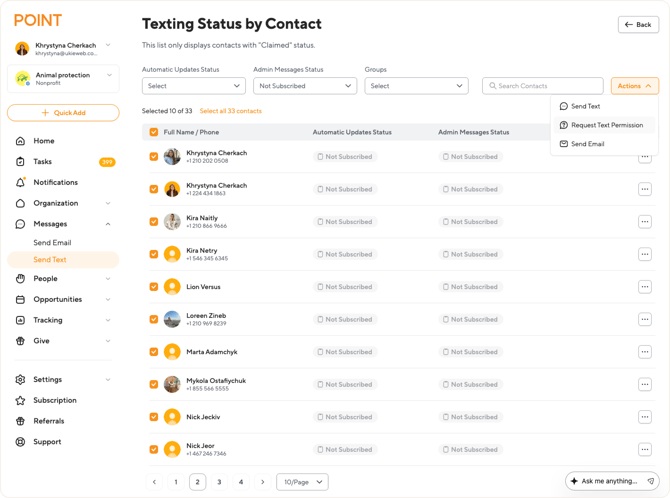
On the Texting Status by Contact page, you will see a list of your Claimed Contacts. This view shows two statuses for each person:
-
Automatic Updates Status
-
Admin Messages Status
To learn more about what these statuses mean, please refer to our detailed guide: Managing Texting Status by Contact.
Step 3: Filter for Unsubscribed Contacts
To identify who needs an invitation:
-
Use the filter options at the top of the list.
-
Set Admin Messages Status to "Not Subscribed".
-
This will narrow your list down to only those volunteers who haven't granted permission yet.
Step 4: Select Your Contacts
Select the volunteers you wish to invite by clicking the checkboxes next to their names. You can select all filtered contacts at once by clicking the "Select all N Contacts" in the header row.
Step 5: Send the Permission Request
-
Locate the Actions button in the top right corner of the page.
-
From the dropdown menu, select "Request Text Permission".
Step 6: What Happens Next?
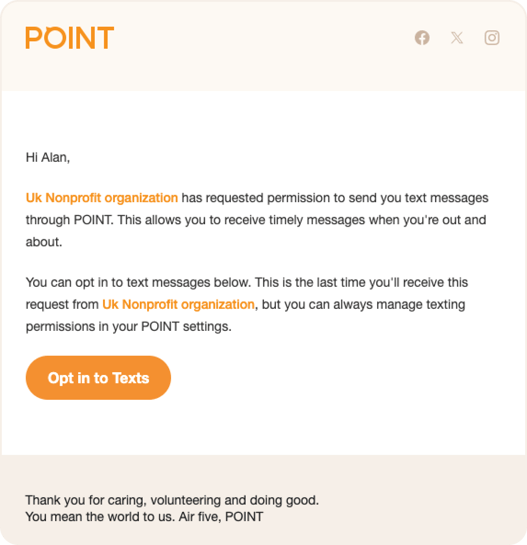
The system will automatically send an email to all selected volunteers with the subject: "[Organization Name] would like permission to send you text messages."
Example Email:
How Volunteers Can Accept the Request
Once a volunteer receives the email, they must follow a simple process to confirm. You can share this guide with them: How to Manage Your Texting Settings
If you need further assistance, please reach out to our support team!