![Logo-2.svg]](https://support.pointapp.org/hubfs/Logo-2.svg)
The Background Check stage is only available if you have background checks enabled: your organization needs a connected Checkr account. How do I connect Checkr and POINT to start background check screenings?
HOW TO ADD A BACKGROUND CHECK STAGE
Step 1: Create a new application or open an existing one for editing. How to Create and Configure an Application?
Step 2: In the Application Flow, select "Add Stage".
Step 3: In the Add Stage window, under Volunteer Stage, select "Background Check". This stage requires the volunteer to clear a background check.
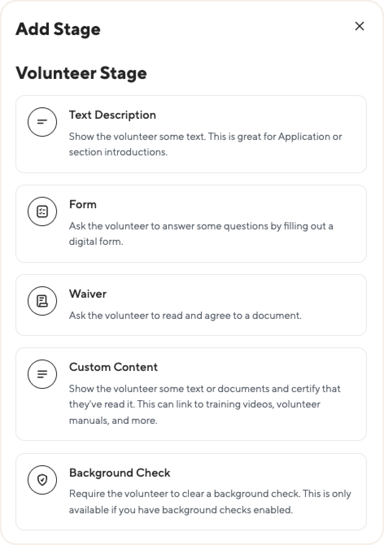
Step 4: In the Background Check stage settings, select:
- Node: the Checkr node where the background check will be ordered (this depends on your Checkr account settings).
- Background Check Type: the background check package the applicant must complete.
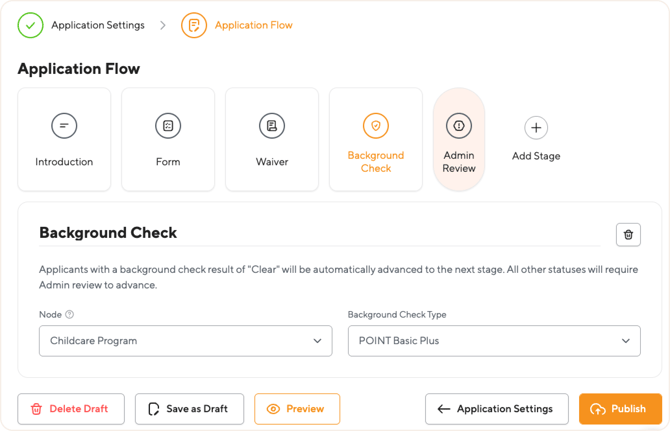
Step 5: Position the stage where you want it in the Application Flow. Stages are completed sequentially, so applicants reach the Background Check stage only after completing the stages before it. Placing it after a Form or Admin Review stage lets you screen only applicants who have passed your initial review, since each background check incurs a cost.
Step 6: Publish the application.
HOW THE BACKGROUND CHECK STAGE WORKS FOR APPLICANTS
When an applicant reaches the Background Check stage, they receive an email invitation from Checkr to securely submit their information. The application shows the current background check status on the Application Review page.
Applicants with a background check result of "Clear" are automatically advanced to the next stage. No admin action is needed.
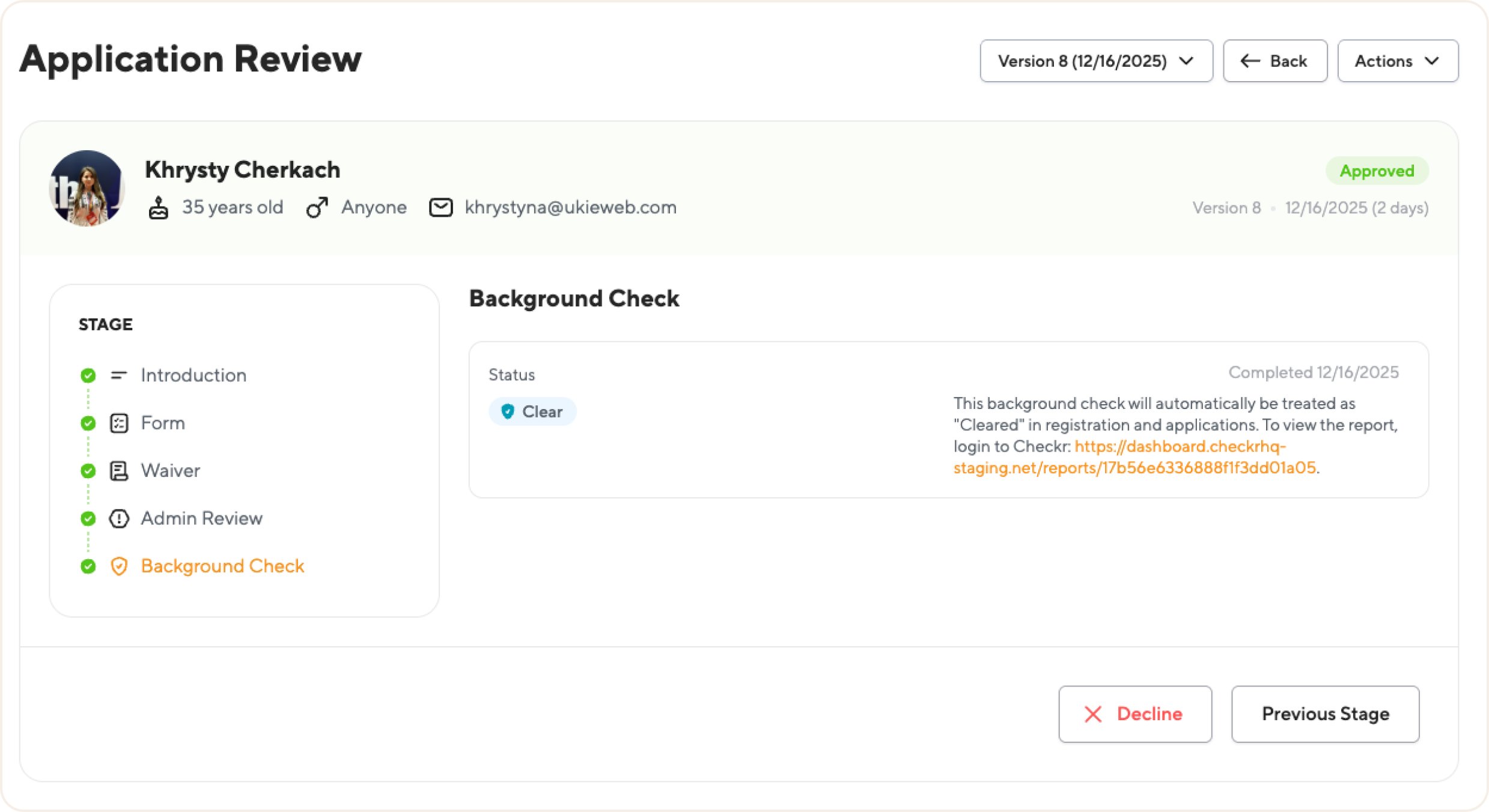
All other statuses require admin review to advance. On the Application Review page, the admin sees the applicant's background check status in the Background Check stage and can Approve the application, Decline it, or send it to a Previous Stage. To review the report itself, follow the link next to the status and log in to Checkr: reports are stored only in Checkr, never in POINT.
For the full list of background check statuses and what each one means, see: What does each background check status mean?
APPLICANTS UNDER 18
If an application includes a Background Check stage and the applicant's age is not known after login, POINT asks for their age before the background check stage. Applicants under 18 skip the background check stage: they will not be invited to submit a background check.
REUSING A VALID BACKGROUND CHECK
If an applicant already has a valid background check with your organization (for example, a Clear result from an event that has not expired), they automatically pass the Background Check stage of any relevant applications. Volunteers are not asked to complete a duplicate check while their existing check is valid. Your organization controls how long checks stay valid with the Auto-Expire setting. How do I set an expiration length for background checks?