![Logo-2.svg]](https://support.pointapp.org/hubfs/Logo-2.svg)
In this article:
- How to export Event Volunteers
- What's included in the CSV
- Other exports available from Event Details
How to export Event Volunteers
Step 1: Open the Event Details page
Navigate to the event you want to export volunteers from. You can find your events under Opportunities in the admin dashboard.
Step 2: Go to the Shifts tab
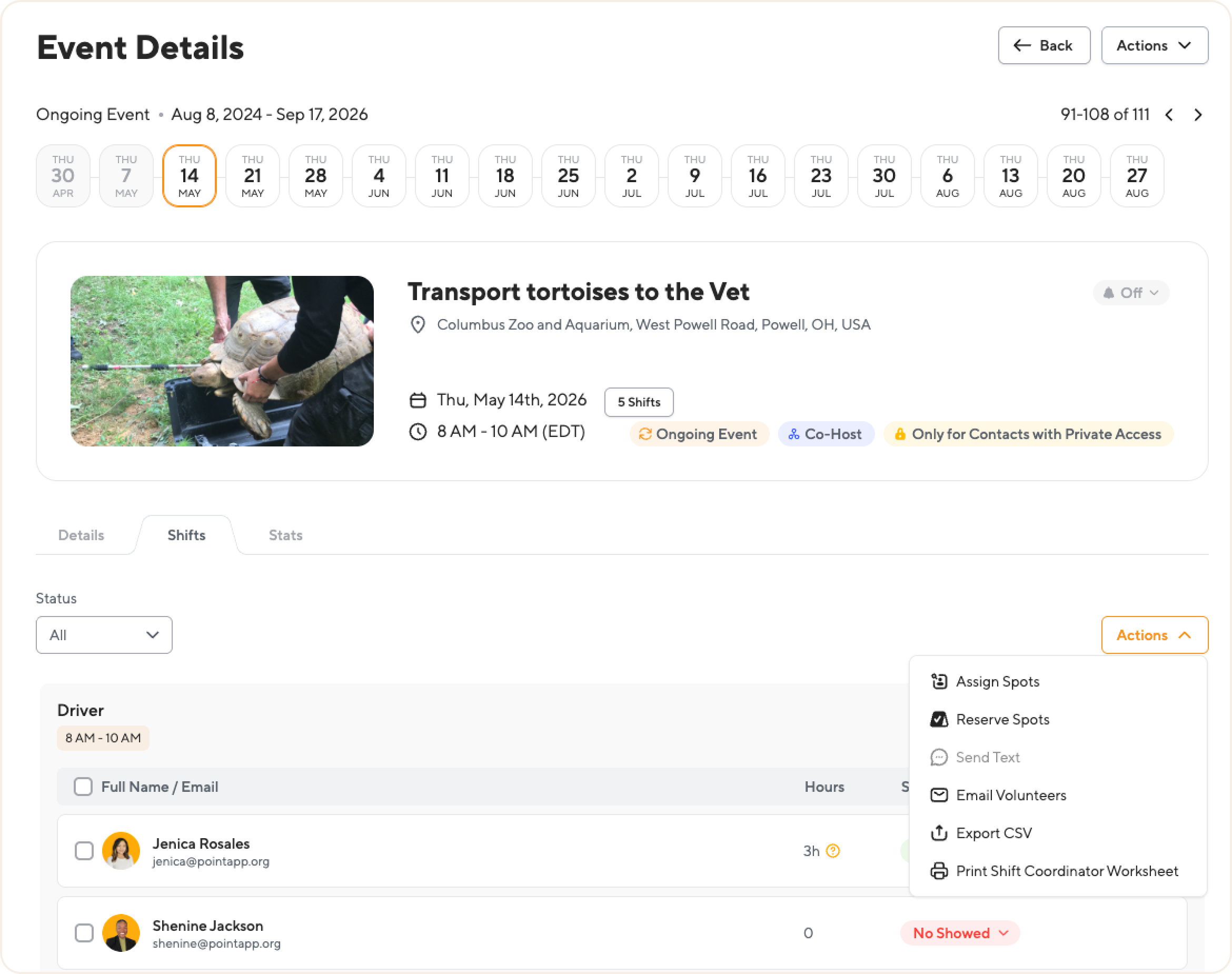
On the Event Details page, click the Shifts tab. This shows the list of volunteers for each shift in the event.
Step 3: Select volunteers (optional)
You have two options:
- Export specific volunteers: use the checkboxes to select the volunteers you want to include in the export.
- Export all volunteers: skip selection and the export will include every volunteer on the event.
You can also use the Status filter at the top of the shifts list to narrow down by status (Signed Up, Checked In, No Showed, Canceled) before exporting.
Step 4: Export the CSV
- Click the Actions button in the top right.
- Select Export CSV from the dropdown.
- The file will download automatically to your device.
What's included in the CSV
The exported file includes the following columns for each volunteer:
- First Name: the volunteer's first name.
- Last Name: the volunteer's last name.
- Email: the volunteer's email address.
- Shift: the name of the shift the volunteer is assigned to.
- Status: the volunteer's status for the event. Possible values are:
- Signed Up: the volunteer registered for the shift.
- Checked In: the volunteer attended and was checked in.
- No Showed: the volunteer registered but did not attend.
- Canceled: the volunteer's sign-up was canceled.
📝 Note: This export does not include detailed information about Reserved Spots. If you need that information, check the Shifts tab in the Event Details page directly.
💡 Tip: Use this export to send a follow-up email to all checked-in volunteers, prepare a shift-by-shift attendance summary, or share the list with a co-host organization.
Other exports from Event Details
The Event Details page also offers a printable PDF export designed for shift coordinators to use on event day. For details, see How to print a shift list for an opportunity.
If you need to export volunteer data across multiple events at once, check out the Pro Event List with Volunteers report. It lets you customize fields, apply filters across many events, and save export history.
Questions? Email us at support@pointapp.org