![Logo-2.svg]](https://support.pointapp.org/hubfs/Logo-2.svg)
In this article, you will learn:
-
How to check if a specific volunteer signed a waiver (Contact Profile)
-
How to see everyone who agreed to a specific waiver (Waiver Details)
-
How to check waiver statuses for an upcoming event (Event Details)
- How to resolve a "Pending Waiver" status
1. Tracking from a Volunteer's Profile:
If you need to check if a specific volunteer has agreed to a waiver, you can do this directly from their contact profile.
-
Go to Contacts in your admin menu and search for the volunteer's name.
-
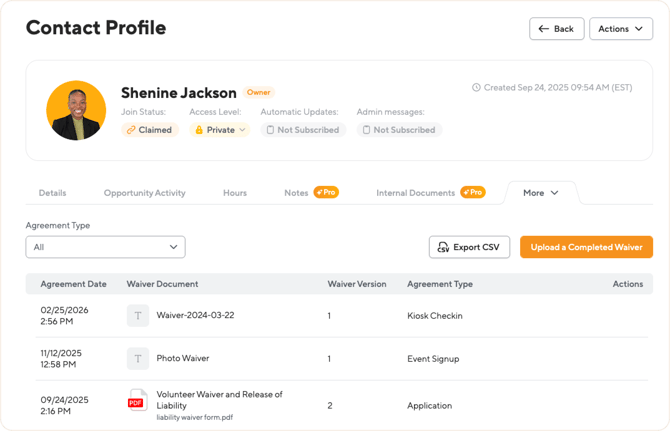
Click on their profile and navigate to the Waivers tab. (Note: this tab is located under the "More" dropdown menu).
This tab provides a personalized list of every waiver this specific volunteer has signed. You will see columns for the Agreement Date, Waiver Document (the name of the waiver), the Waiver Version, and the Agreement Type.
The information is available to export CSV.
How to manually upload a waiver:
If a volunteer signs a physical paper waiver, you can digitize it! Just click the orange Upload a Completed Waiver button on this tab. This allows the admin to upload the file and associate it directly with the corresponding waiver requirement in the system. 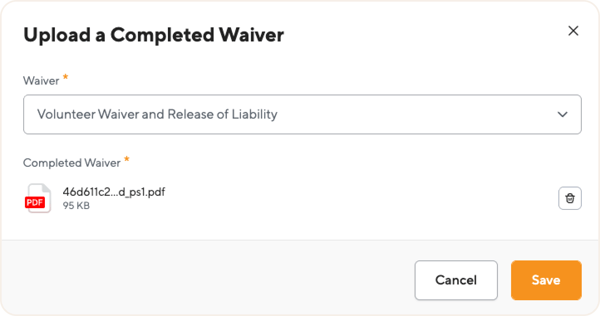
2. Tracking from the Waiver Details Page
If you want to see a full list of everyone who has signed a specific waiver, the Waiver Details page is the best place to look.
-
Navigate to Waivers under the Organization menu and select "View" on the waiver you want to check.
-
Click on the Volunteer Agreements tab.
-
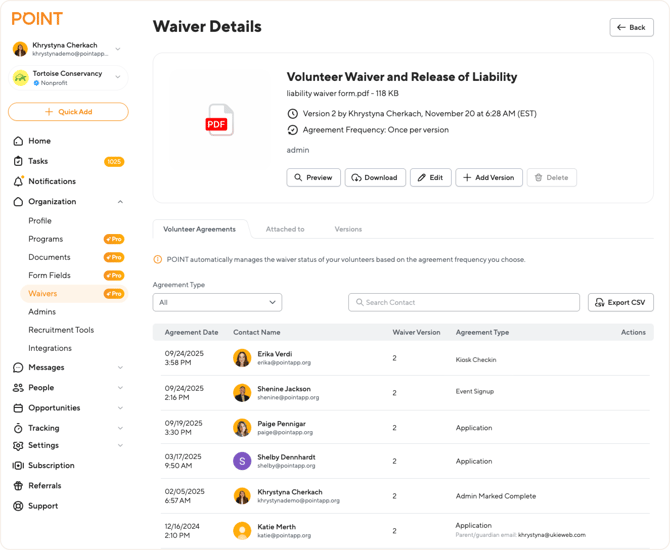
Here, you will see a complete list of volunteers who agreed to this specific waiver.
The table displays the Agreement Date, Contact Name, Waiver Version, and the Agreement Type. You can also click the Export CSV button on the right to download this data into a spreadsheet.
What is the "Agreement Type"? The Agreement Type tells you exactly how the volunteer agreed to the waiver. The system tracks several paths:
-
Application: Agreed during a general or specific application process.
-
Event Signup: Agreed while registering for an event.
-
Kiosk Checkin: Agreed on-site while checking in via the Kiosk.
-
Admin Upload: An admin manually uploaded a physical copy of the waiver.
-
Admin Marked Complete: An admin manually verified that the waiver was completed.
-
Guest waiver email: Agreed via an email sent to a guest volunteer.
-
Minor waiver: Signed by a parent/guardian for a minor.
-
Minor guest waiver email: Signed by a parent/guardian for a minor guest.
-
Waiver version update email: Agreed to a new version via an email prompt.
3. Tracking from the Event Details Page
If an event requires a waiver, you can quickly check the agreement status of every volunteer signed up for that specific opportunity directly from the event roster.
-
Navigate to the Event Details page and click on the Shifts (Volunteers) tab.
-
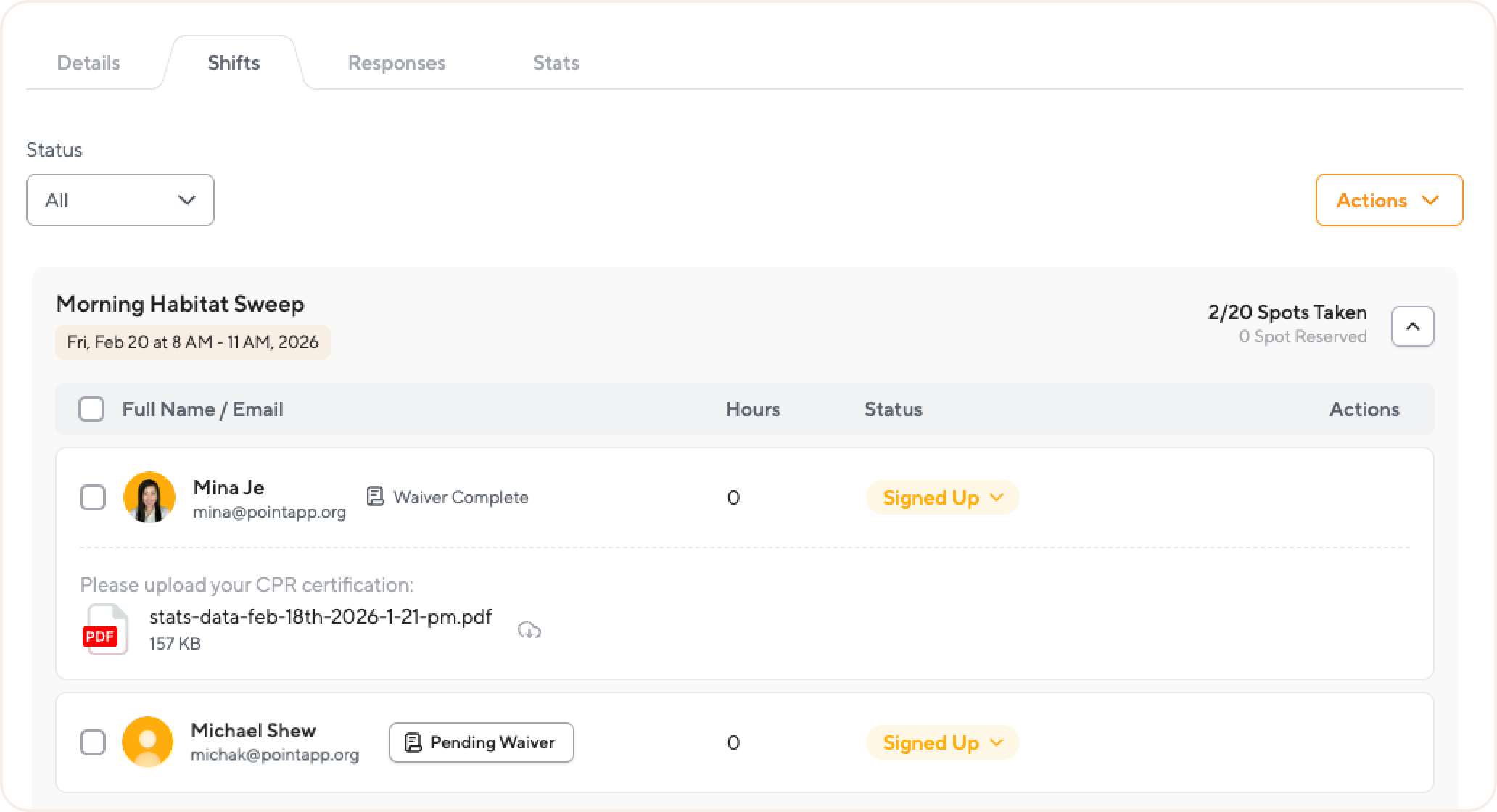
Look at the list of signed-up volunteers. Next to each volunteer's name, you will see an indicator of their waiver status:
-
Waiver Complete: The volunteer has successfully agreed to the required waiver.
-
Pending Waiver: The volunteer has not yet agreed to the conditions. This typically happens if an admin manually assigned the volunteer to the shift, or if the volunteer is a minor or a guest who still needs agree the document via email.
-
How to resolve a "Pending Waiver" status:
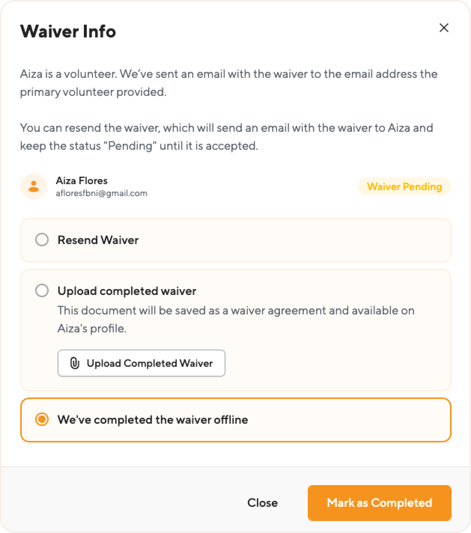
If you see a volunteer with a Pending Waiver button, you can click it to open the "Waiver Info" pop-up. From there, you have three options to resolve the pending status:
-
Resend Waiver: This will send another email to the volunteer with the waiver attached and keep their status as “Pending” until they agree to it.
-
Upload completed waiver: If they signed a paper copy, you can upload the document here, which will automatically save it as a waiver agreement on their profile.
-
We've completed the waiver offline: If you just need to manually approve them without uploading a document, select this option and click "Mark as Completed".
*Note: If an admin assigns a volunteer to an event, then the signed waiver won't have a date because the volunteer didn't agree to the conditions on their own.