![Logo-2.svg]](https://support.pointapp.org/hubfs/Logo-2.svg)
Table of Contents
What is the Active Clock-Ins and where can I find it?
Have you ever wondered who is currently volunteering on-site in real-time? The Active Clock-Ins is a live dashboard designed to give you complete oversight of all actively running volunteer timers.
Previously, admins could only see volunteer hours after the volunteer had successfully clocked out. With the Active Clock-Ins, you can see exactly who is clocked in right now, how long they've been volunteering, and even step in to manage their session if needed.
To access this page:
Navigate to your left-hand admin menu and click on Opportunities > Active Clock-Ins.
When do volunteer sessions appear in the Active Clock-Ins?
A live tracking record will appear in this log the moment a volunteer uses a Kiosk or scans a QR code to start a timer. However, your Check-In Station must be configured to track time.
Active timers will show up if your station uses any of the following settings:
-
Event Check-In with the Manual Event Check Out toggle enabled.
-
Allow Same-Day Event Registration with the Manual Event Check Out toggle enabled.
-
Non-Event Time Tracking (whether hours are logged broadly to the organization or to a specific Program).
How do I read the Active Clock-Ins dashboard?
The Active Clock-Ins is built to give you all the information you need at a glance.
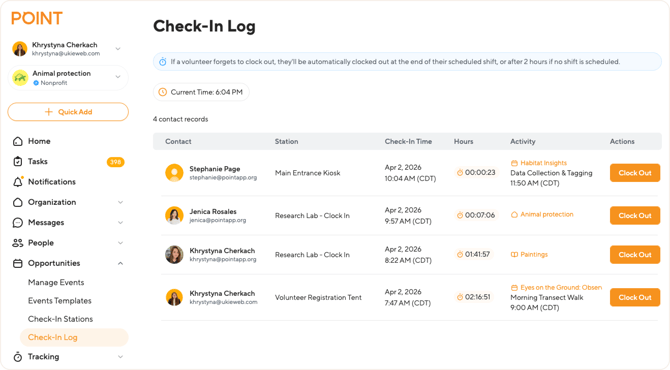
Here is what you will see on the dashboard:
-
Current Time: Displays your current local time so you can accurately track ongoing sessions.
-
Record Count: Shows the total number of volunteers currently clocked in.
-
Contact: The volunteer's full name and email address.
-
Station: The name of the physical Check-In Station they used to start their session.
-
Check-In Time: The exact date, time, and timezone when they clocked in.
-
Hours: A live, running stopwatch showing exactly how long their current session has been active.
-
Activity: Shows where the hours are going. This could be a specific Event (with shift details), a Program, or general Organization hours. You can click these links to go directly to the source.
-
Actions: The orange Clock Out button allows you to manually end a volunteer's session.
Note: If a volunteer successfully clocks out on their own using the app, web, or kiosk, their live timer stops immediately, the record disappears from this log, and their "Approved" hours are saved to your standard Hours tracking pages.
How do I manually clock out a volunteer?
If a volunteer leaves without clocking out, or if you simply want to close out their session for them, you can do so directly from the log.
-
Find the volunteer in the Active Clock-Ins list and click the orange Clock Out button next to their name.
-
A Clock Out Hours window will appear.
-
Review and Edit: The system automatically pre-fills the start time and the current running duration. You can manually adjust the Start Date, Start Time, and Duration (Hours and Minutes) to ensure the time is perfectly accurate.
-
Click the orange Approve button.
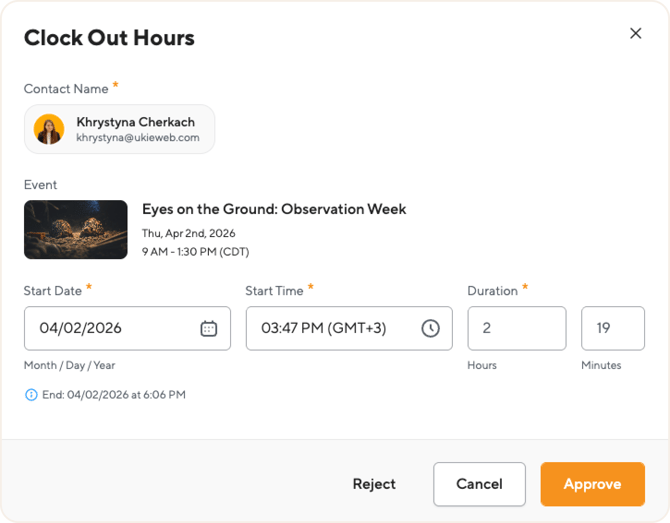
Once approved, the timer stops, the record is removed from the active log, and the approved hours are officially saved to the Event, Program, or Organization!
How do I reject or cancel a timer started by mistake?
Sometimes a volunteer might accidentally scan a QR code or start a timer by mistake. You can easily void these hours without them impacting your reports.
-
Click the orange Clock Out button next to the volunteer's name.
-
In the window that appears, click the Reject text link at the bottom.
-
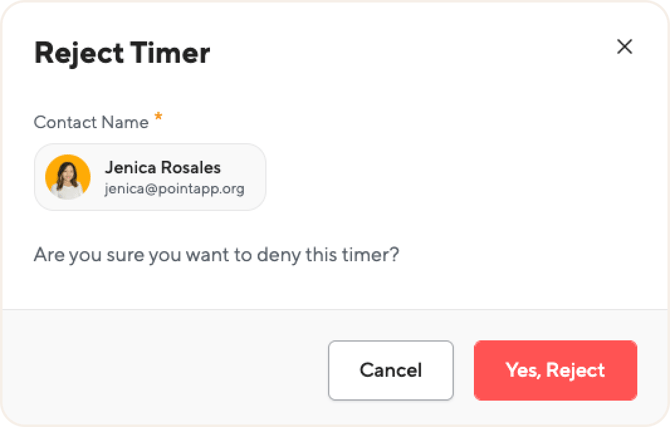
A Reject Timer confirmation window will appear. What happens next depends on what kind of hours were being tracked:
If rejecting Non-Event or Program Hours: Simply click the red Yes, Reject button. The timer is permanently deleted, the hours are set to 0, and nothing is logged in the system.
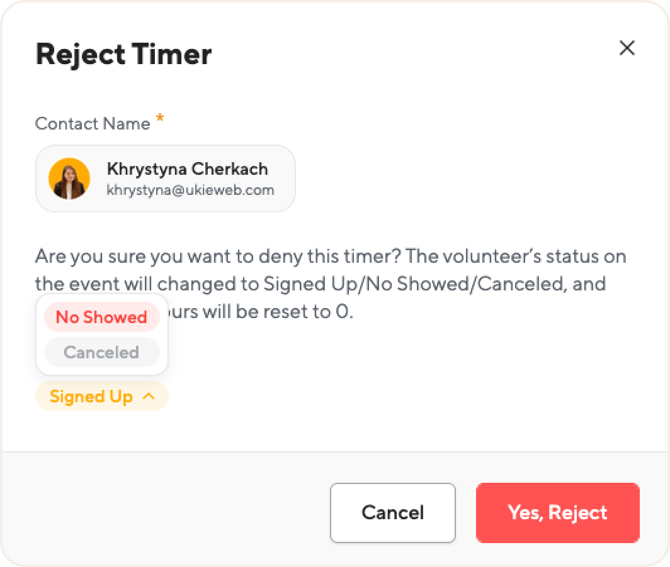
If rejecting Event-Based Hours:
Because this timer is tied to a specific scheduled shift, rejecting the timer means you must also decide the volunteer's final attendance status for that shift.
-
Choose a new Volunteer Status from the dropdown menu:
-
-
Signed Up: Reverts them to a normal registered state (as if they never checked in).
-
No Showed: Marks them as absent.
-
Canceled: Removes them from the shift entirely.
-
-
If you select Canceled, you can also enter a Cancelation Reason (which is emailed to the volunteer) and toggle "Do you want to open up one spot?" to allow another volunteer to take their place.
-
Click Yes, Reject to finalize the action. The timer will be reset to 0 and their event status will be updated immediately.
What happens if a volunteer forgets to clock out?
Don't worry—you don't have to monitor this log 24/7! POINT has a built-in safety net to prevent timers from running forever.
If an active timer has not been stopped by the end of the day, the system will automatically close it at midnight (12:00 AM) based on the following rules:
-
For Event-Based Hours: The system will automatically log a duration that exactly matches the scheduled duration of their shift. (Example: If they checked into a 9:00 AM - 12:00 PM shift and forgot to clock out, the system will automatically approve exactly 3 hours for them).
-
For Non-Event Hours (Programs/Org): The system will automatically stop the timer and log a default of exactly 2 hours.
This automatic resolution ensures your reporting stays accurate and prevents you from having to clean up abnormally long (e.g., 18-hour) time entries!