![Logo-2.svg]](https://support.pointapp.org/hubfs/Logo-2.svg)
Video Tutorial: Below is a step-by-step video guide to help you navigate these settings.
Managing these settings is a two-step process: first, verifying your phone number, and second, configuring your preferences for each organization. Follow the steps below to set up your texting preferences.
Access Text Settings on the POINT App
You can quickly access these settings directly through the POINT mobile application:
-
Log in to your volunteer account on the POINT app.
-
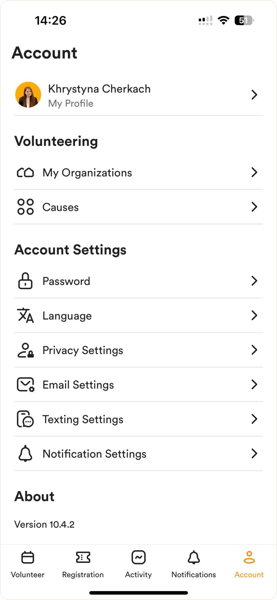
Click on Account (usually located in the bottom navigation bar).
-
Click on Texting Settings in the Account Settings section.
Step 1: Phone Number Verification (Web Example)
You must verify your phone number to ensure text messages are sent securely to the correct device.
-
Log in to your volunteer account.
-
Navigate to Manage Account and select the Texting Settings menu option.
-
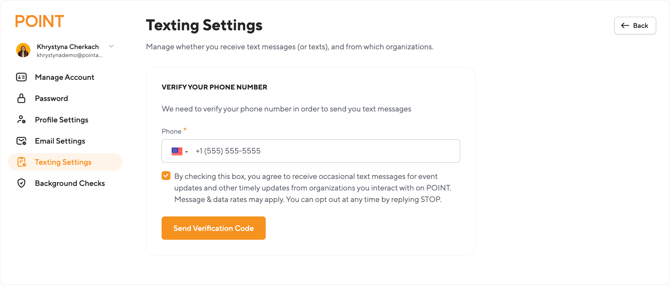
You will see a prompt: "We need to verify your phone number in order to send you text messages."
-
Enter your phone number in the designated field.
-
Click "Send verification code."
-
You will receive an SMS containing a six-digit verification code.
-
Enter this six-digit code into the Verification Code field on the POINT platform.
-
Click "Verify Your phone number."
Result: Once verified, you will see a confirmation message that your number has been successfully verified, and you can proceed to Step 2.
Step 2: Configure Texting Settings by Organization
You can customize the types of text messages you receive from each organization you are associated with.
-
Stay on the Texting Settings page (below the verification section).
-
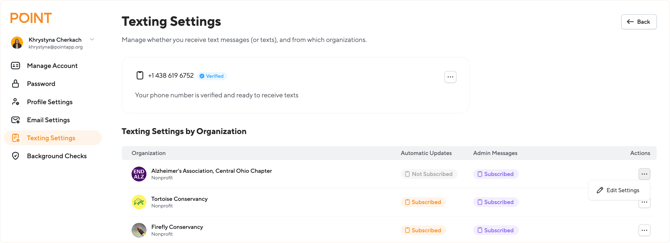
You will see a list of organizations you are a member of, along with their current status for Automatic Updates and Admin Messages (e.g., Subscribed or Not Subscribed).
-
Locate the organization you want to adjust and click the "Action" button (usually represented by three dots) next to its name.
-
Select "Edit Setting" from the dropdown menu.
-
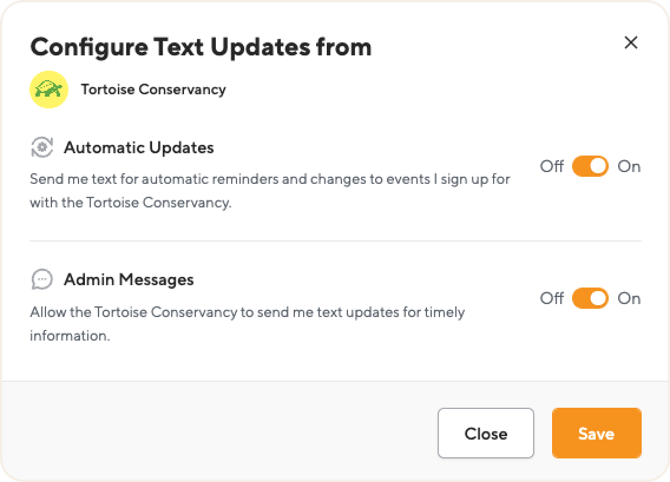
A pop-up window titled "Configure Text Updates from Organization" will appear with two main settings:
-
"Automatic Updates"
-
Description: "Send me text for automatic reminders and changes to events I sign up for with Organization."
-
Action: Toggle Off or On.
-
-
"Admin Messages"
-
Description: "Allow the Organization Name to send me text updates for timely information."
-
Action: Toggle Off or On.
-
-
-
Adjust the settings as desired (Off or On).
-
Click the "Save" button to confirm your changes.
Your text message preferences for that specific organization are now updated!
Video: How to Configure Texting Settings