![Logo-2.svg]](https://support.pointapp.org/hubfs/Logo-2.svg)
Only the account Owner can invite teammates and manage roles.
Which plans include roles
Team roles are part of the Teams plan. Here is what each plan includes:
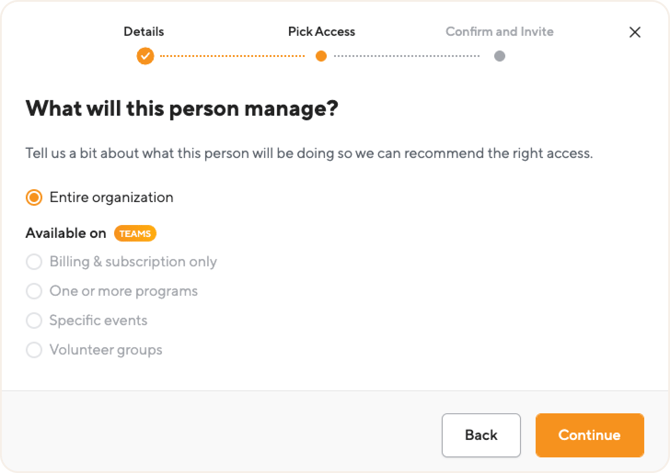
- Free and Pro plans: you can invite teammates, but every teammate gets full admin access to the entire organization. When you invite someone, only the "Entire organization" option is available. The other options are marked "Available on Teams."
- Teams plan: you can assign any role and limit access to specific programs, events, or groups.
To learn more about the Teams plan, see [link: Teams plan article].
How to invite a teammate
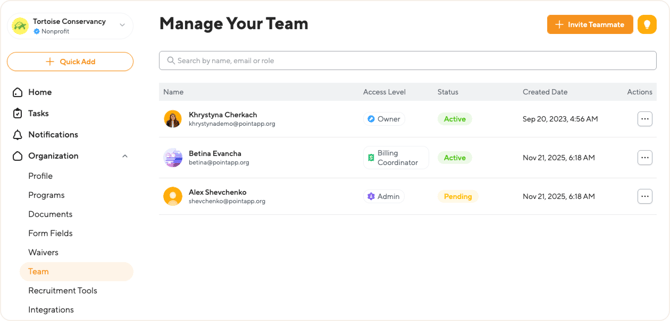
- In the left sidebar, go to Organization, then click Team.
- Click the Invite Teammate button in the top right corner.
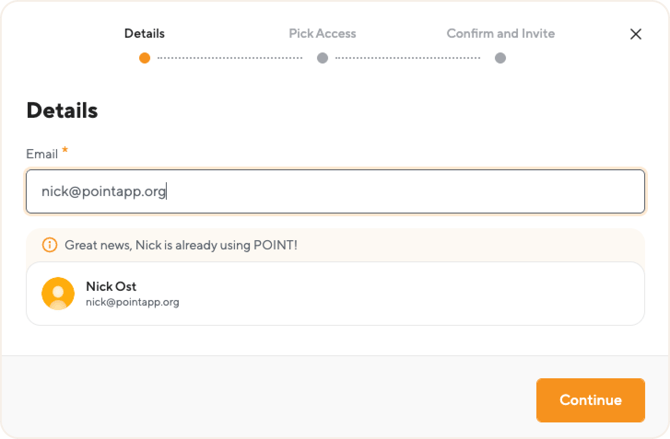
- Enter the person's email address.
POINT searches your organization's existing contacts for this email address:- If the email matches one of your organization's contacts, you will see their name and profile photo with the message "Great news, [Name] is already using POINT!" You do not need to enter their name.
- If the email does not match any contact in your organization, you will see the message "Looks like they're new to POINT. Add their name so we can invite them to your team." Enter their first and last name.
- Click Continue.
How to pick the right access
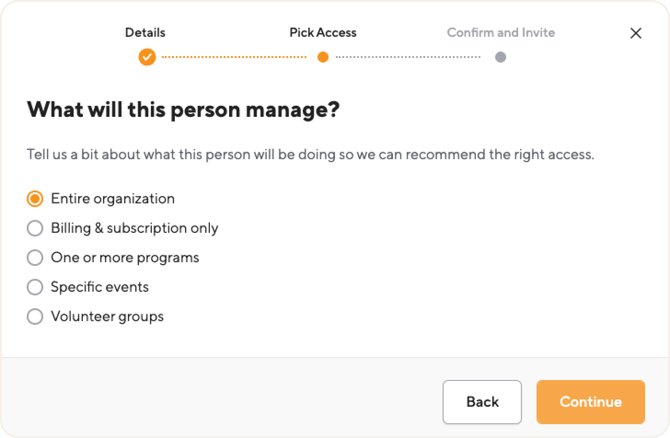
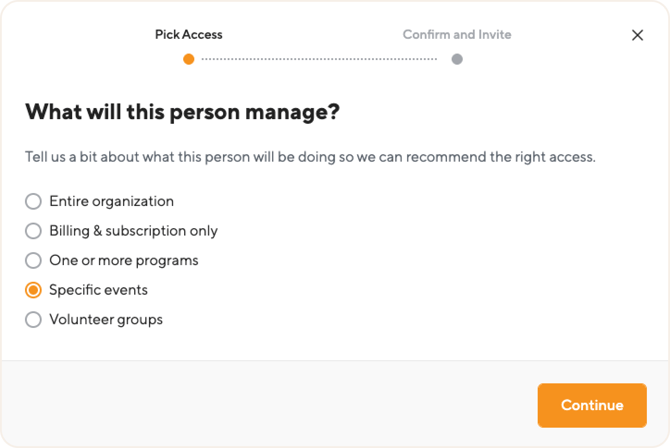
On the next step, POINT asks "What will this person manage?" Choose the option that best describes what this person will be doing:
- Entire organization: recommends the Admin role
- Billing & subscription only: recommends the Billing Coordinator role
- One or more programs: recommends the Program Coordinator role
- Specific events: recommends the Event Coordinator role
- Volunteer groups: recommends the Group Coordinator role
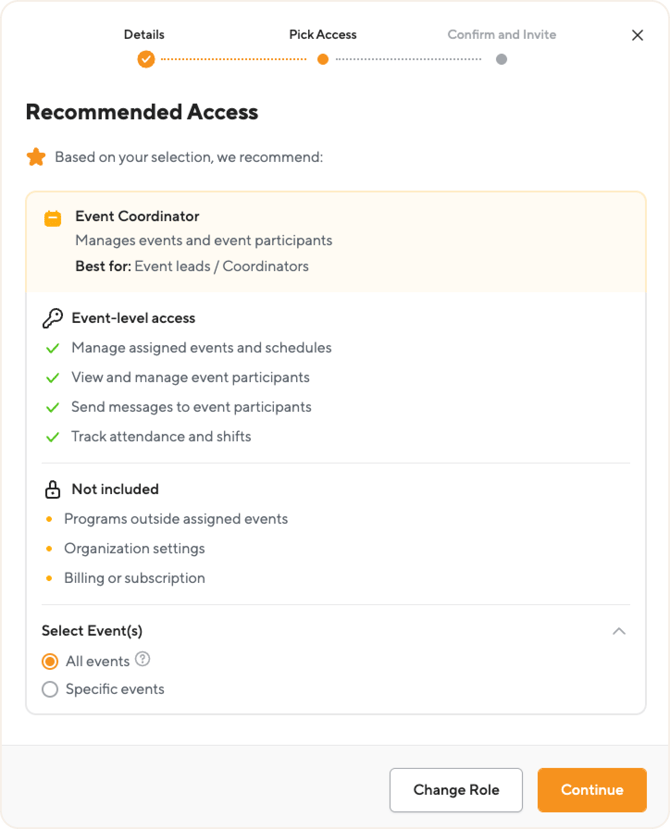
After you make a selection, POINT shows the recommended role with a full list of what this role can and cannot do. If you want a different role, click Change Role to see all available roles, including Owner.
To learn what each role can do, see [link: Team roles in POINT: overview].
How to choose specific programs, events, or groups
The Program Coordinator, Event Coordinator, and Group Coordinator roles can be limited to specific items. When assigning one of these roles, you will choose between two options:
- All programs, events, or groups: this includes everything your organization has now, plus anything created in the future. New items are added to this person's access automatically.
- Specific programs, events, or groups: this person will only have access to the items you select. They will not automatically get access to new items created later.
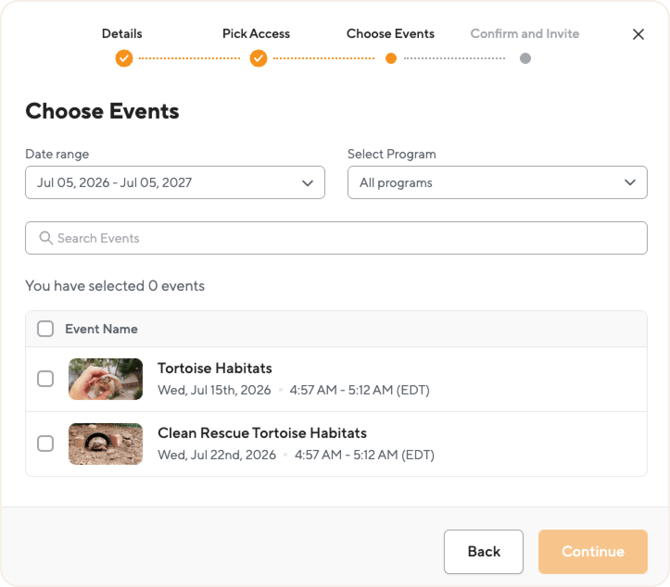
If you choose the specific option, an extra step appears where you select the items. For example, when assigning an Event Coordinator to specific events, you can search events by name, filter them by date range or program, and check the events you want this person to manage. Note that the date range filter shows upcoming events for the next year by default. Adjust the range to find events outside of it.
For groups, keep in mind: selecting a main group also includes all of its subgroups. Selecting only a subgroup gives access to that subgroup only, not to the parent group.
How to confirm and send the invitation
On the last step, review the person's name, email, and assigned role. You can expand the role card to see the full list of permissions, and edit the selected programs, events, or groups if needed.
Click Add Team Member to finish.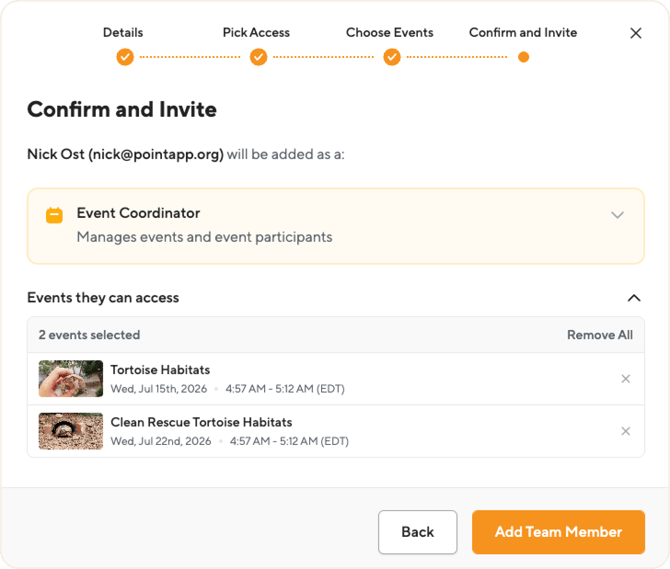
What happens after you click Add Team Member
When you enter an email address, POINT checks it against your organization's contact list. What happens next depends on the contact's status:
|
This contact is... |
What POINT does |
Status in the Team table |
|---|---|---|
| Claimed (already using POINT with an active account) | Their role works right away. They receive an email letting them know their role was updated. |  |
| Invite sent (invited to POINT, but has not set up their account yet) | POINT automatically sends them an invitation email with the role details. |  |
| Someone who declined the invitation | The invitation was sent, but the person declined it. You can resend it from the ⋯ menu using Resend Invite. |  |
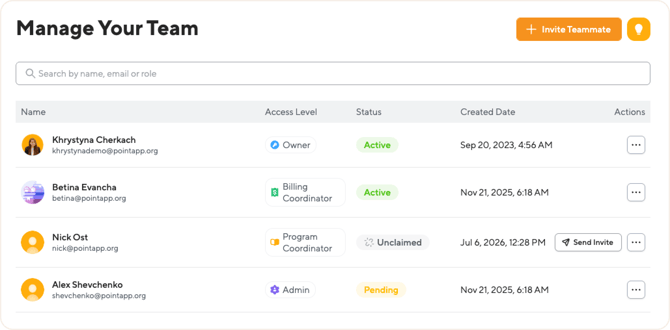
What the statuses mean
- Active: the person can use POINT according to their role.
- Pending: the invitation email was sent, and the person has not accepted it yet.
- Declined: the person declined the invitation. You can resend it from the ⋯ actions menu using Resend Invite.
How to change a team member's role
The Owner can change anyone's role at any time:
- On the Team page, click the "..." menu next to the team member and select Edit Role.
- Pick the new access, the same way as when inviting: answer "What will this person manage?", review the recommended role, and, for coordinator roles, choose which programs, events, or groups they will manage.
- On the confirmation step, review the new role and click Save Changes.
The new role takes effect right away.
Managing your team members
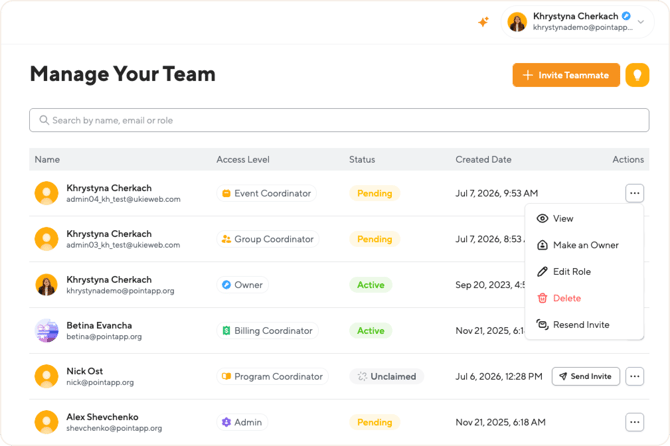
Click the "..." menu next to a team member for more actions:
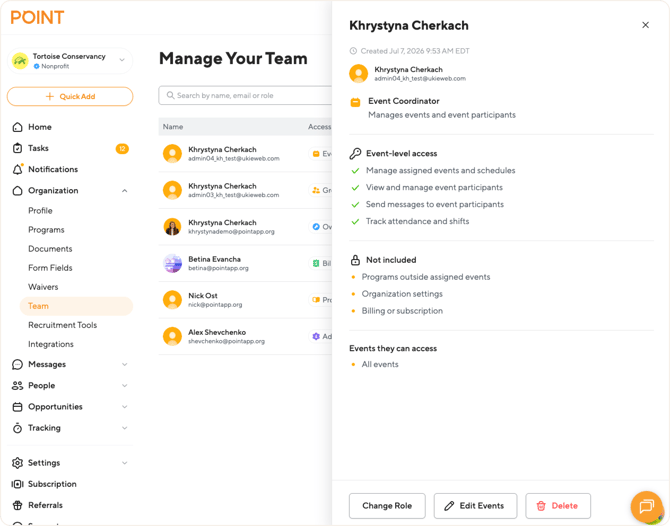
- View: opens a panel with the person's role, what it includes and does not include, and, for coordinator roles, which programs, events, or groups they can access. From this panel you can also change the role or edit the coordinator's scope.
- Edit Role: change the person's role (see above).
- Make an Owner: promote the team member to the Owner access level. A confirmation popup appears before the change is made. An organization can have more than one Owner.
- Make Admin: shown for team members with the Owner access level. Changes them to an Admin, with a confirmation popup.
- Resend Invite: send the invitation email again if the person has not accepted it yet.
- Delete: remove the person from your team.