![Logo-2.svg]](https://support.pointapp.org/hubfs/Logo-2.svg)
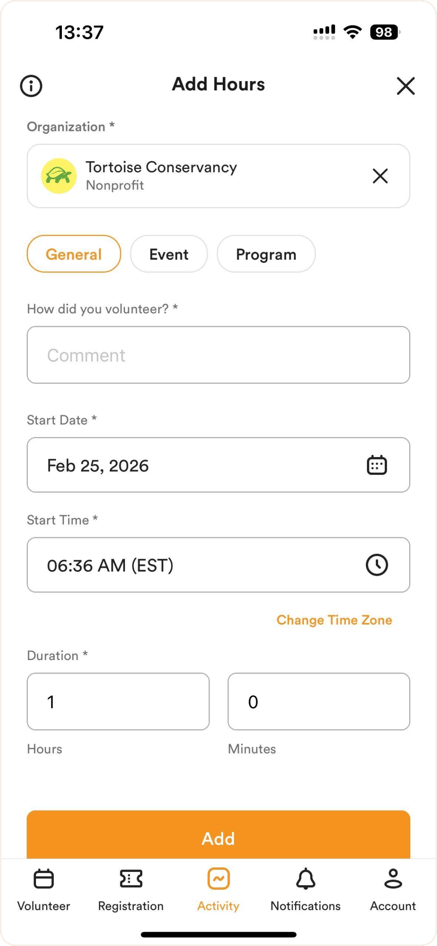
How to self-submit volunteer hours (from the mobile app):
- In the app, go to the "Activity" tab.
- At the top, click on "+Add Hours".
- Select the Organization: First, search for and select the organization you are submitting hours for.
-
Choose the Activity Type:
-
General: For other general volunteer activities in organization.
-
Event: If you are adding hours for a specific event.
-
Program: If you are adding hours to an organization's specific program (available if they are on the Pro subscription).
-
-
Add Date and Time details: Enter your Start Date, Start Time, and the Duration of your volunteering (in hours and minutes).
- Describe your activity: Finally, add a comment in the "How did you volunteer" or "What did you do?" box to describe your work, and click the Add button at the bottom to save your hours.
*Note: An admin from that organization will have to approve your hours before they are listed on your profile.
*Note: If you can’t find your organization, click the “Can’t Find My Organization” button. You can type in the organization name and add a contact email from someone at that organization so they can approve your hours. It is possible that an organization you volunteered with isn’t yet on POINT, but this allows you to still count those hours on your volunteer profile.
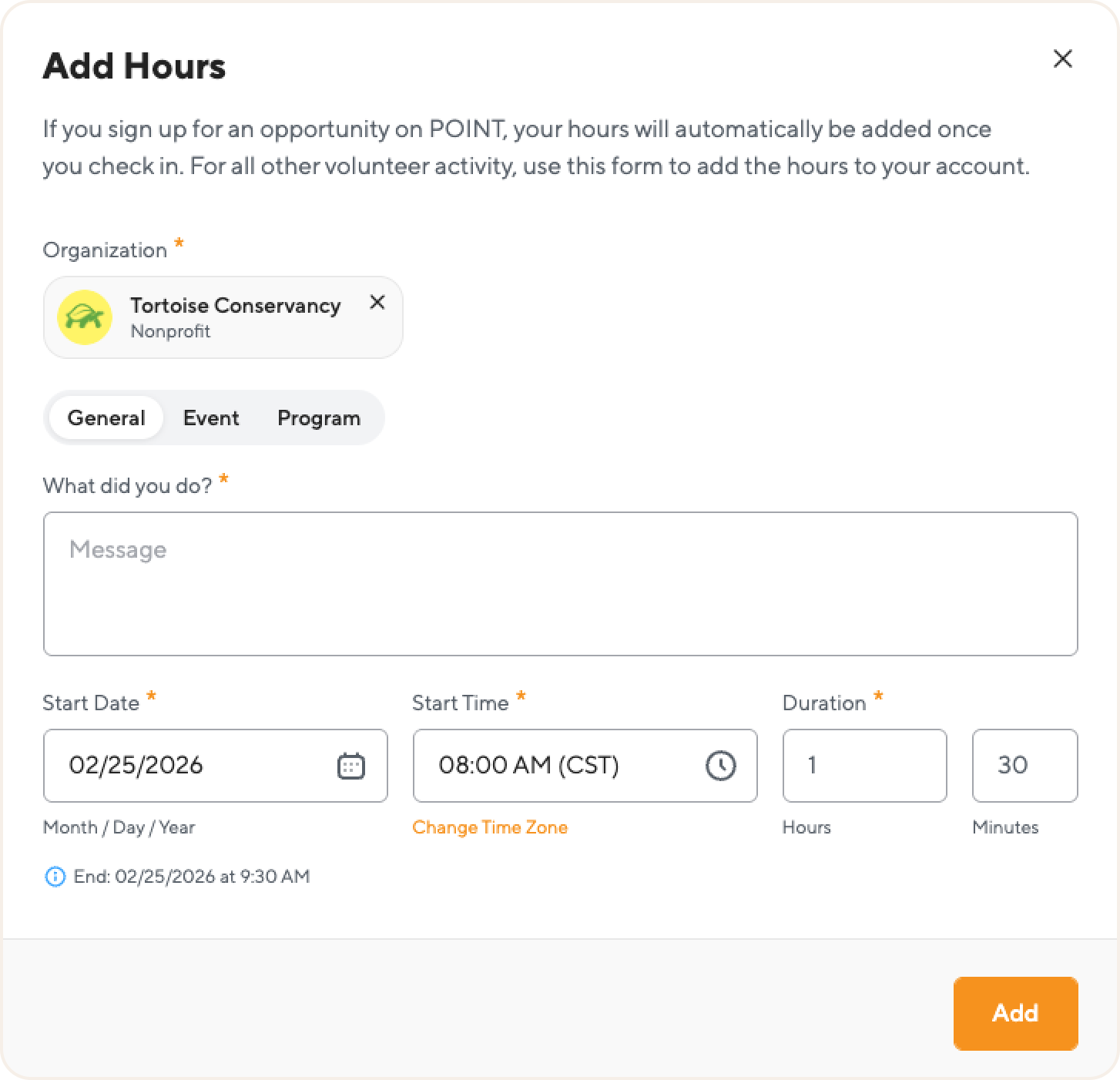
How to self-submit volunteer hours (from the web):
- In your volunteer dashboard, you can either to to "+Add Hours" under your name or go to and click on "+Add Hours" next to export.
- Select the Organization: First, search for and select the organization you are submitting hours for.
(Note: The system requires this step first to accurately determine the default time zone for your hours). -
Choose the Activity Type: Next, select the type of activity you completed using the tabs. You can choose:
-
General: For other general volunteer activities.
-
Event: If you are adding hours for a specific event.
-
Program: If you are adding hours to an organization's specific program (available if they are on the Pro subscription).
-
- Add Date and Time details: Enter your Start Date, Start Time, and the Duration of your volunteering (in hours and minutes).
- Describe your activity: Finally, add a comment in the "What did you do?" box to describe your work, and click the Add button at the bottom to save your hours.
Check the Time Zone: Pay attention to the time zone listed in the Start Time field. If it is incorrect, click the "Change Time Zone" link directly under the field. Select the correct time zone from the dropdown list, and then simply close that pop-up.
How to edit pending self-submitted hours as a volunteer (see video below):
- Go to your profile in your volunteer dashboard and locate "Hours" under Activity"
- Find the pending hours entry that you need to edit and then click on the "pencil" button to edit the entry. The "Edit Hours" box will come up where you can make changes. Don't forget to hit "Save".

Questions? Email us at support@pointapp.org.