![Logo-2.svg]](https://support.pointapp.org/hubfs/Logo-2.svg)
Waivers are only available on the Pro plan. Learn more about Pro subscription here.
In this article:
- How do you send a waiver to volunteers?
- How do you resend a pending waiver?
- When does POINT send waivers automatically?
- How do waiver emails work for minors?
- What email does the volunteer get?
- Frequently asked questions
How do you send a waiver to volunteers?
- In the left side menu, select Organization and click Waivers.
- Click the waiver’s name to open its Waiver Details page.
- Open the Actions menu and select Send Waiver.
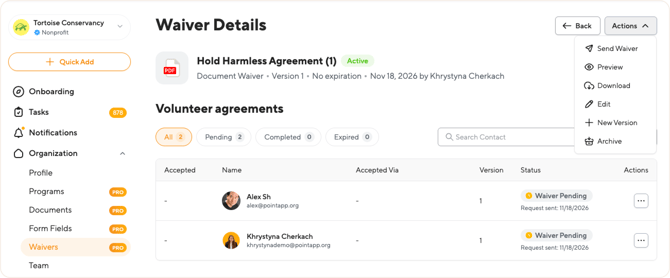
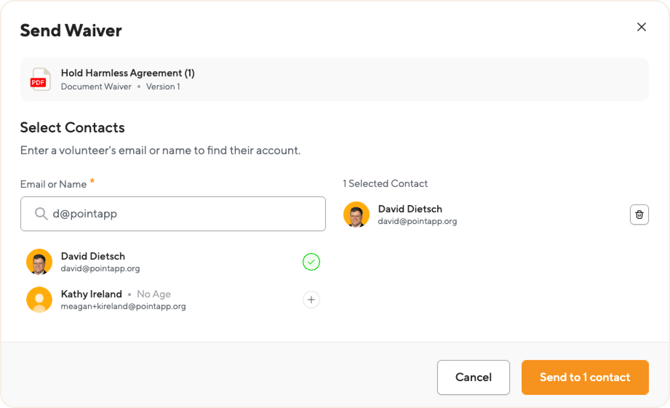
- In the Send Waiver window, type a volunteer’s email or name to find their account.
- Click + next to each volunteer you want to send the waiver to. Selected volunteers appear on the right. To remove one, click the trash icon.
-
Click Send to [N] contacts.
Each volunteer gets an email with the waiver. In Volunteer agreements, they appear with the status Waiver Pending and the date the request was sent. Once they agree, the status changes to Completed.
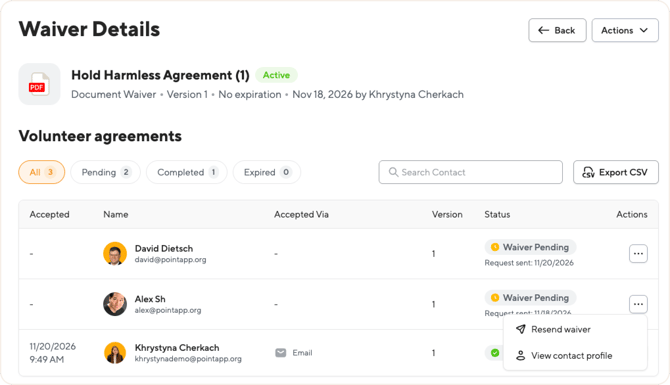
💡 Tip: If a volunteer already received this waiver, sending it again sends them a reminder email.
How do you resend a pending waiver?
From the Waiver Details page:
- Find the volunteer in Volunteer agreements. Use the Pending filter to see only waivers that haven’t been accepted yet.
- Click the … icon in their row and select Resend waiver.
- Confirm with Resend Waiver.
From an event:
- Open the event and go to the Volunteer Waivers tab.
- Expand the volunteer’s row with the arrow.
- Click the … icon next to a pending waiver and select Resend waiver.
- To resend every pending waiver for this volunteer in one email, click the … icon in the volunteer’s row and select Resend all incomplete.
The waiver stays Waiver Pending until the volunteer agrees to it.
When does POINT send waivers automatically?
You don’t always need to send waivers yourself. POINT emails a waiver to the volunteer automatically when:
- You assign a volunteer to an event that requires a waiver they haven’t agreed to yet. They get an email asking them to agree.
- You add a new version of a waiver and select Email registered volunteers to re-sign. Volunteers registered for upcoming events get an email to agree to the new version. Learn more: How to add a new version of a waiver.
POINT also asks volunteers to agree, without an email, when:
- They sign up for an event, check in, or fill out an application that requires a waiver they haven’t agreed to yet. The waiver appears as a step in the sign-up or check-in.
- An annual waiver expires. Volunteers agree again at their next sign-up or check-in.
- When you add a new version of a waiver with both Require existing agreements to be re-signed and Email registered volunteers to re-sign selected. Volunteers registered for upcoming events get an email asking them to sign the new version. If you select only the first option, no email is sent; volunteers sign the new version at their next check-in or event sign-up. Learn more: How to add a new version of a waiver.
How do waiver emails work for minors?
Minors can’t agree to a waiver themselves. A parent or guardian agrees on their behalf. How the waiver reaches them depends on where it comes from.
When a minor signs up for an event, fills out an application, or checks in at a kiosk
The minor enters their parent or guardian’s email right in that step. POINT sends the waiver straight to the parent or guardian, who reviews it and agrees on the minor’s behalf.
When you send a waiver to a minor yourself
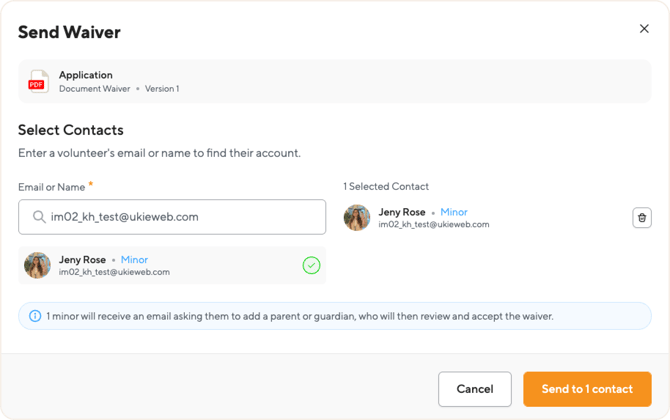
- When you select the minor in the Send Waiver window, a note explains what happens next, e.g. “1 minor will receive an email asking them to add a parent or guardian, who will then review and accept the waiver.”
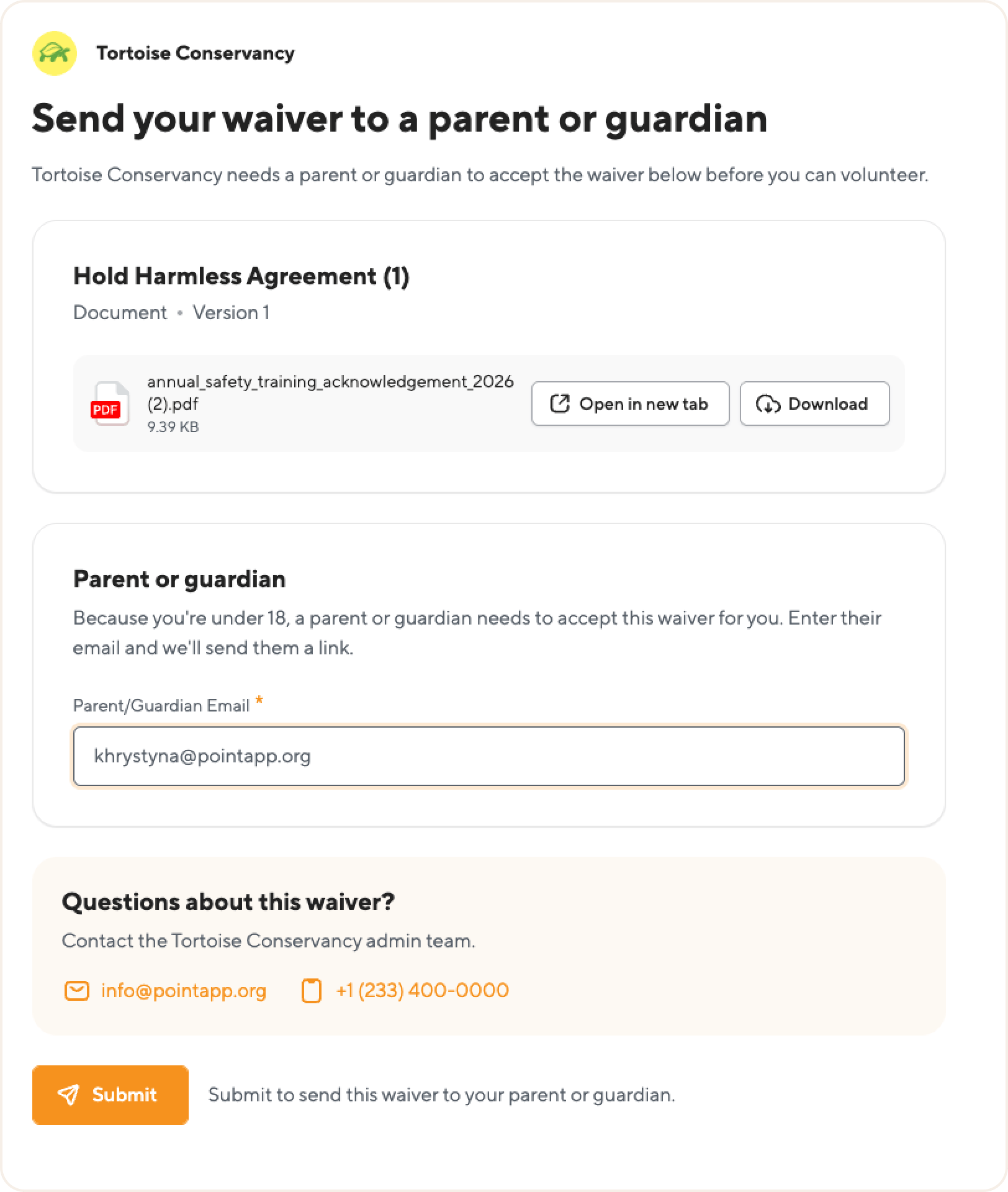
- The minor gets an email and opens the Send your waiver to a parent or guardian page. There they can read or download the waiver and enter their parent or guardian’s email, then click Submit.
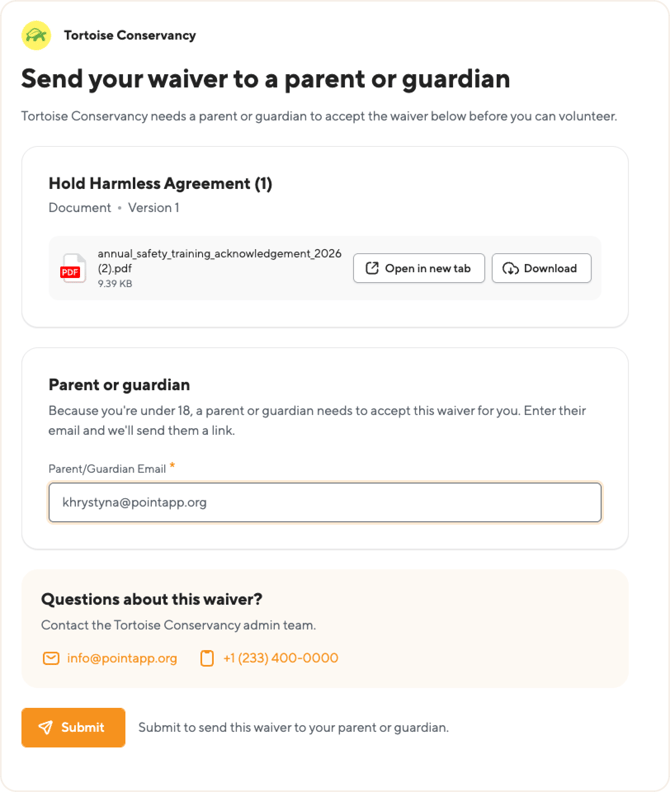
- POINT sends the waiver to the parent or guardian, who reviews it and agrees on the minor’s behalf.
When you resend a minor’s waiver
The window explains that a parent or guardian must accept the waiver and shows the Parent/Guardian Email the minor added. Keep it, or enter a different email if the waiver should go to someone else. The waiver stays Waiver Pending until it’s accepted.
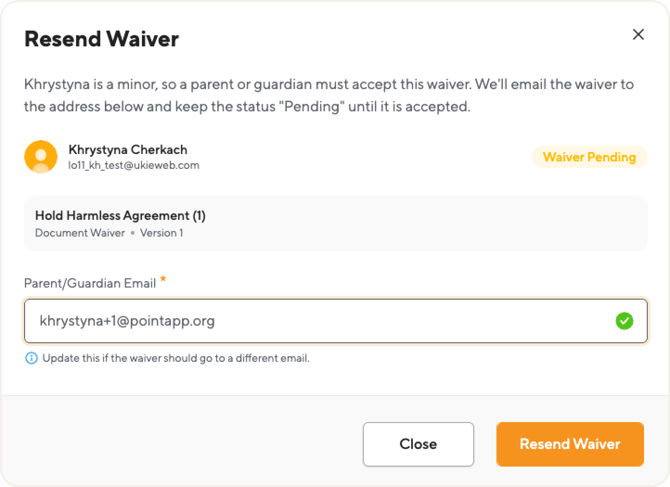
If several waivers are sent at the same time, the parent or guardian gets one email with all of them.
Learn more: How do waivers work for minors?
What does the volunteer see?
The waiver email has a Review and Accept Waiver button. It opens a page where the volunteer, or a minor’s parent or guardian, agrees to the waiver. No login is needed.
On this page they can:
- open the waiver in a new tab or download it;
- tick the checkbox to agree. A parent or guardian confirms they’re agreeing on the minor’s behalf;
- see your organization’s admin email and phone, in case they have questions;
- click Submit once every waiver on the page is accepted.
After they submit, the status in Volunteer agreements changes to Completed.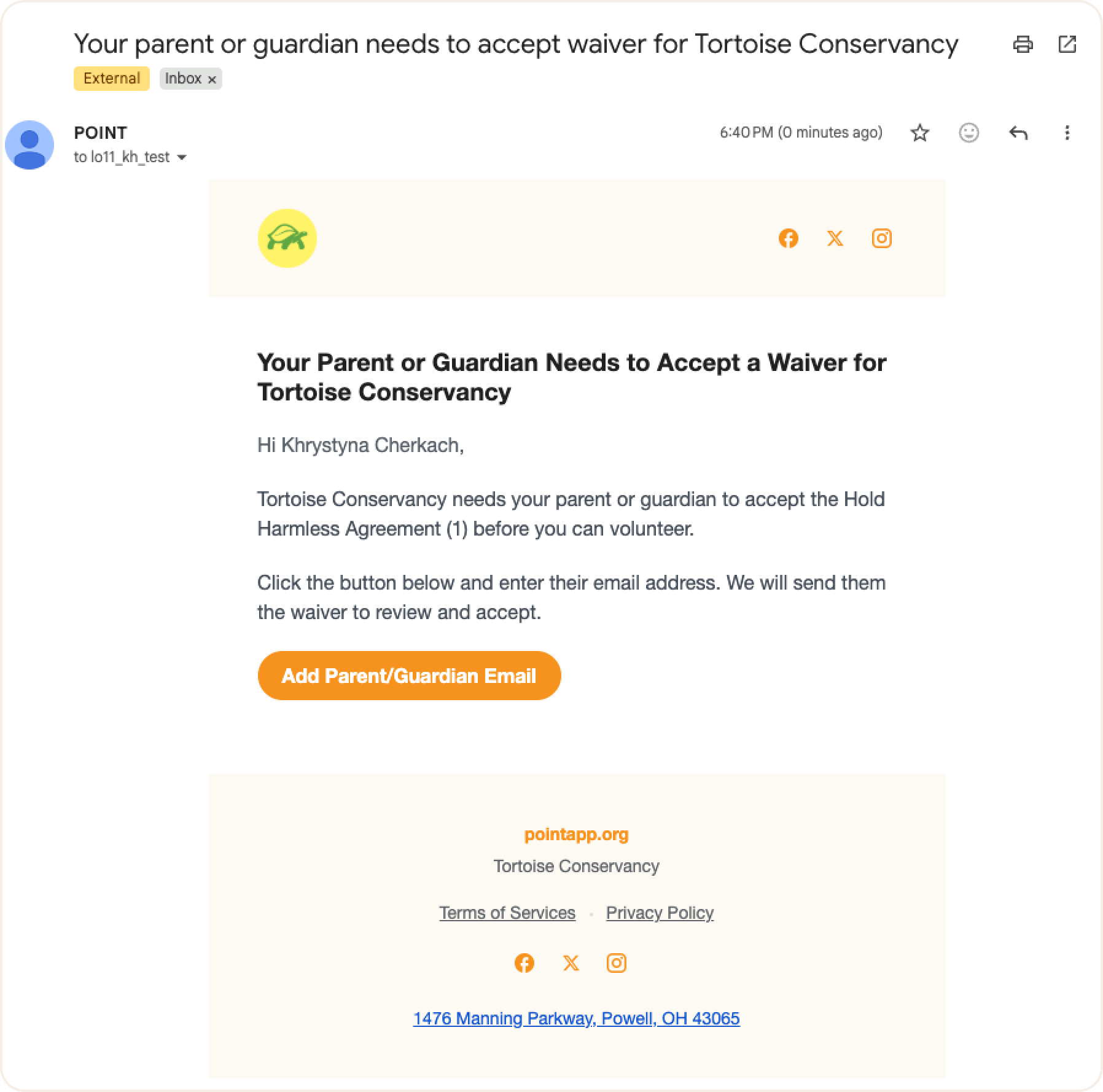
Frequently asked questions
-
Can I send a waiver that isn’t added to any event or application?
Yes. Any active waiver in your library can be sent from its Waiver Details page. -
Can I send a waiver to several volunteers at once?
Yes. Select as many volunteers as you need in the Send Waiver window, then click Send to [N] contacts. -
Do volunteers need to log in to agree to a waiver?
No. The button in the email opens the waiver page directly.
-
How do I know if a volunteer agreed?
Open the waiver’s Waiver Details page. The status changes from Waiver Pending to Completed, with the date they agreed.
-
Why did a minor get the waiver email instead of their parent?
When you send a waiver to a minor yourself, POINT first asks the minor to add their parent or guardian’s email. Once they do, the waiver goes to the parent or guardian.
-
Can I change the parent or guardian’s email?
Yes. When you resend a minor’s waiver, enter a different email in the Parent/Guardian Email field.
-
Do volunteers get an email when an annual waiver expires?
No. They’re asked to agree again at their next event sign-up or check-in.
-
What if a volunteer didn’t get the email?
Ask them to check their spam folder, then resend the waiver. For minors, check that the parent or guardian’s email is correct before resending.
Questions? Email us at support@pointapp.org.
Learn more: How to add a new version of a waiver