![Logo-2.svg]](https://support.pointapp.org/hubfs/Logo-2.svg)
You can even use both methods.
Method 1: How to Extend Based on Frequency Rule
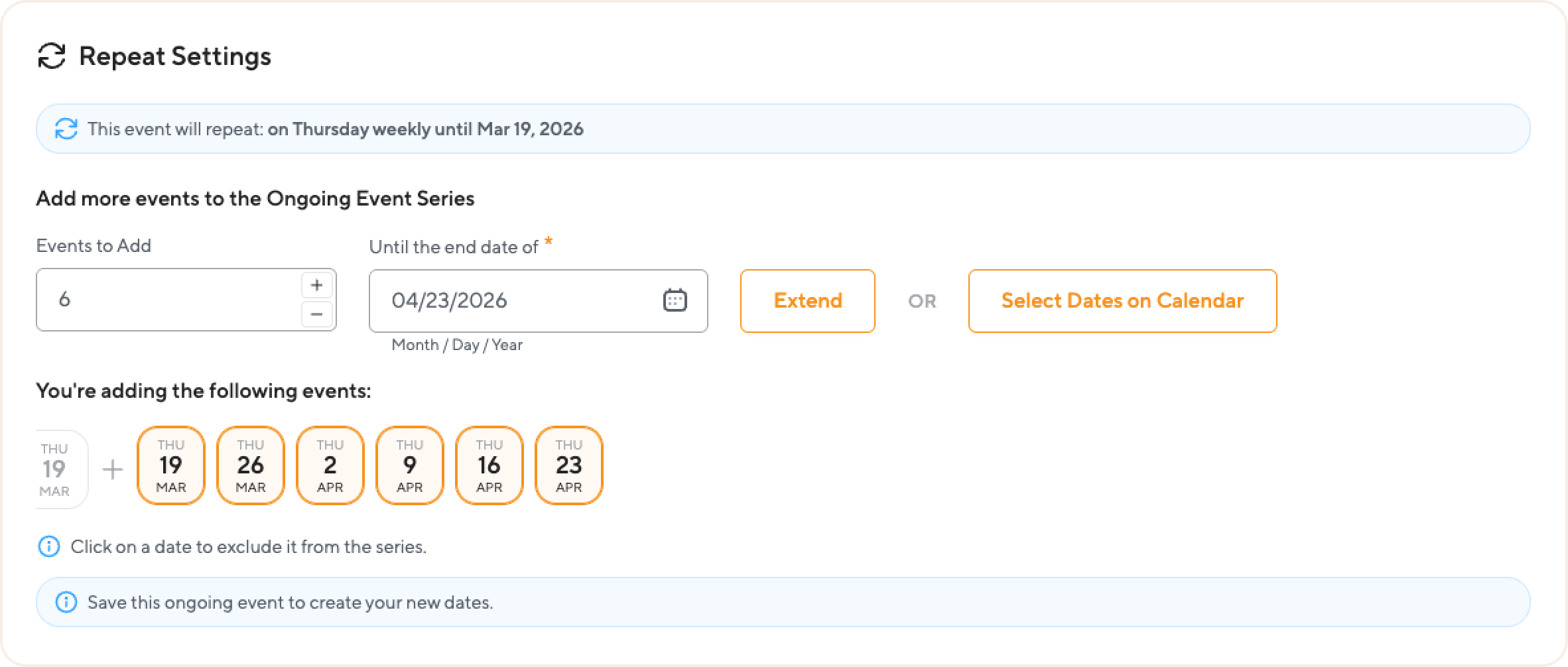
Use the Extend function when you want to continue the series following your established repetition pattern (e.g., adding 6 more Thursdays).
- Access the Event: Go to the Event Details page of the series you want to expand.
- Edit Mode: Select "Edit this and the following dates" from the Actions menu.
- Find Repeat Settings: Navigate to the Where & When section and scroll down to Repeat Settings.
- Extension:
- Type the number of events to add in the "Events to Add" field. OR
- Select a new end date in the "Until the end date of" calendar field.
- Apply: Click the orange Extend button.
- Preview: A chain of dates will appear under "You're adding the following events."
Note: If you want to exclude a specific date from the new set, hover over that date card and click the "X" in the top-right corner.
Save: To publish these dates, complete the edit flow by clicking the Update button on the final Volunteer Requirements stage.
Method 2: How to Add Custom Dates (Select Dates on Calendar)
Use Select Dates on Calendar if you need to add specific dates to a recurring event that do not follow the established frequency rules.
-
Access the Event: Open the series and select "Edit this and the following dates" from the Actions menu.
-
Go to Settings: Navigate to the Where & When section and find Repeat Settings.
-
Open Calendar Picker: Click the Select Dates on Calendar button.
-
Choose Dates: A side panel titled "Add More Events" will appear.
-
Available dates: Blank white squares.
-
Event already scheduled: Grayed-out squares.
-
Toggle View: Switch between Month or Year view for easier navigation.
-
-
Select: Click on any available date you wish to insert into the series.
-
Confirm: Once you have selected your dates, click the orange Confirm button.
-
Review: Your manually selected dates will now appear in the preview list alongside any other upcoming events.
Note: If the event has strict signup requirements tied to a schedule, the system will display a warning advising adherence to the original schedule. However, the admin retains full control to add any date as needed
Final Step: Update the Series
Click Update on the Volunteer Requirements stage to save all changes and publish the new dates to your volunteer portal.
Watch the video example
Need more help with recurring events? Contact our support team! support@pointapp.org