![Logo-2.svg]](https://support.pointapp.org/hubfs/Logo-2.svg)
Core Principle: Draft Version Management
When editing an Application, you are utilizing a Draft Version. This draft serves as a secure, working copy that enables you to update information or make adjustments without altering what volunteers currently see.
Publishing the Draft Version will update the live Application, ensuring that your improvements are reflected for volunteers.
Please note that once the new version is published, previous versions are replaced and cannot be recovered.
Method 1: Creating a Draft While the Application is Live (Recommended)
This method allows your organization to continue onboarding volunteers using the current live Application while you work on updates privately.
Steps to Create and Publish a New Draft
-
Navigate to the People menu and select Applications.
-
On the Application Details page, click on the “Actions” button in the upper right corner.
-
Select “Create Draft Version”. The system creates an exact copy of the current live Application.
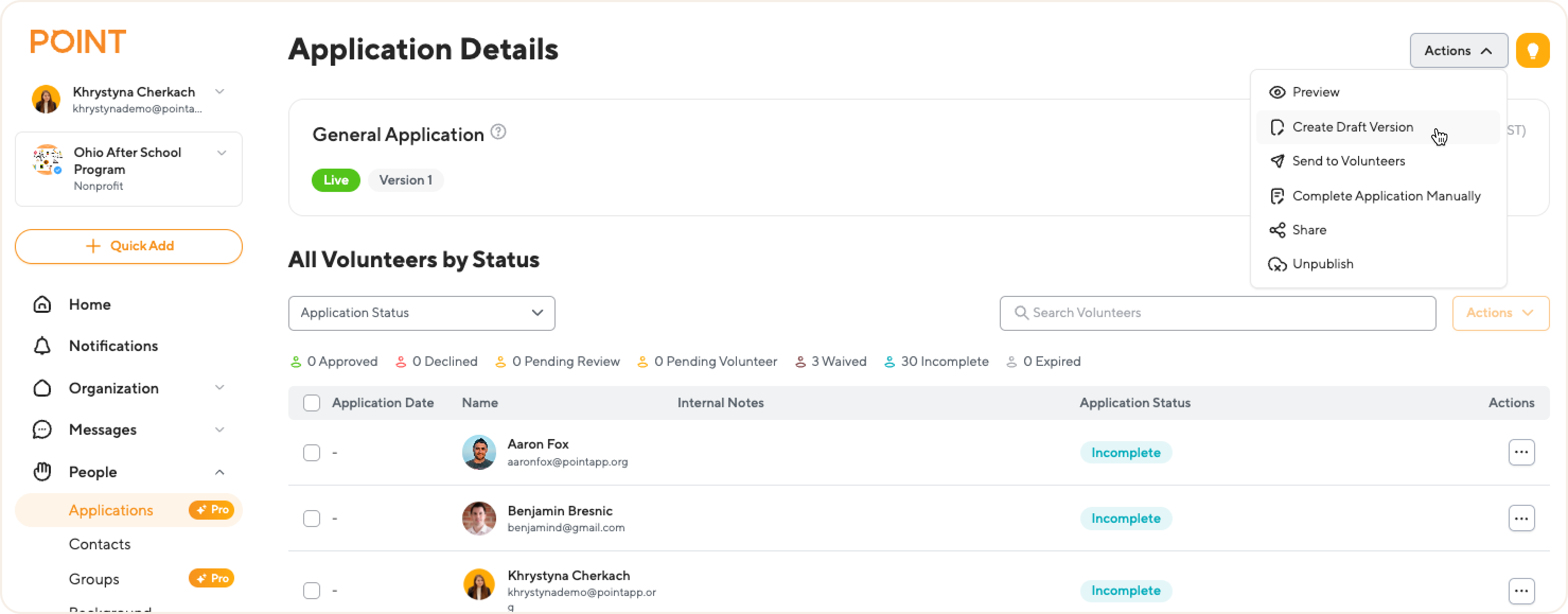
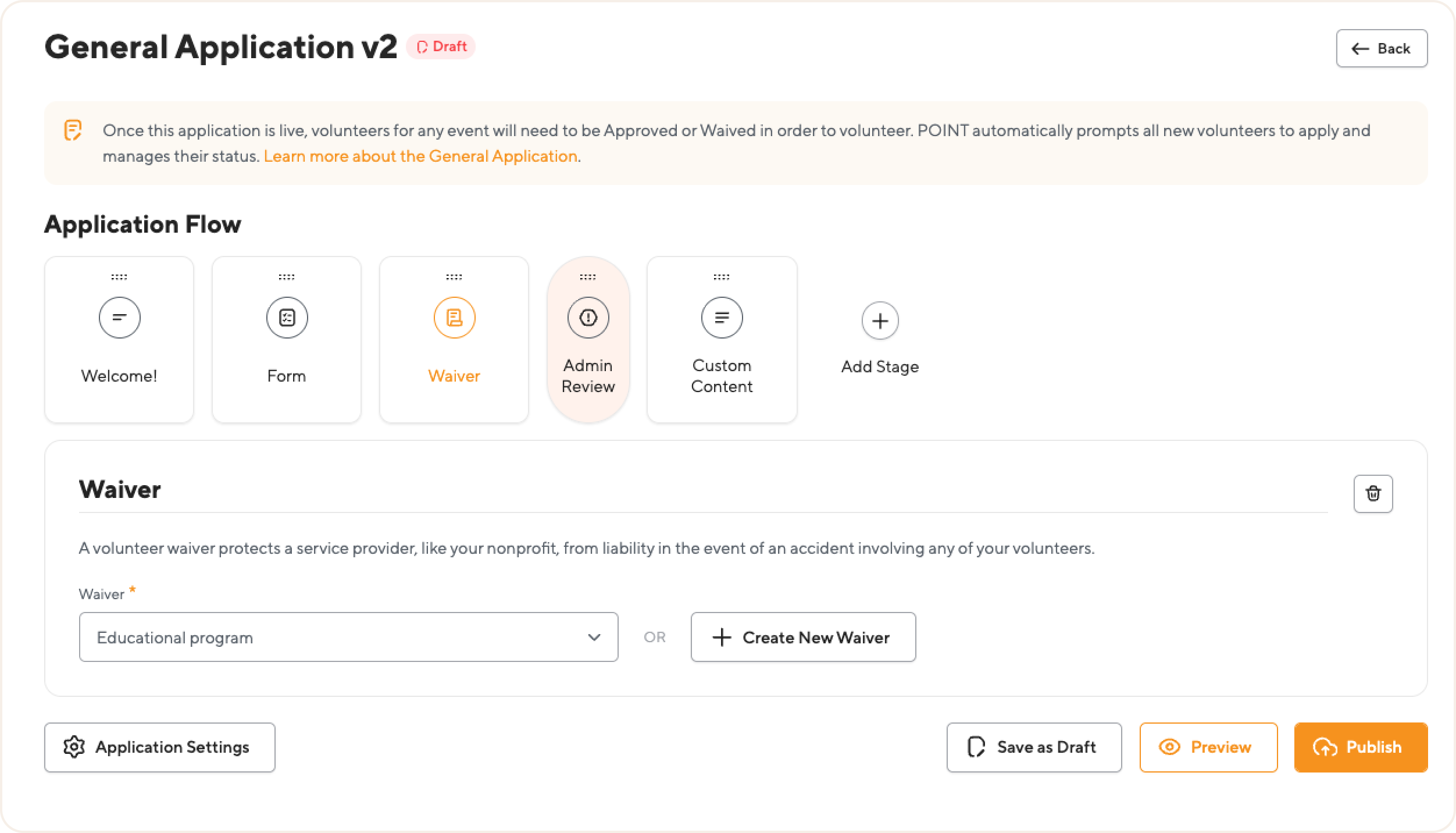
4. The draft of your application opens. Make all the necessary updates to the stages, forms, and content.
5. To save your changes, you have two options:
- Save as Draft: Saves your progress without making it live. The original version remains published.
- Publish: Immediately replaces the current live Application with your new draft.
Editing an Existing Draft
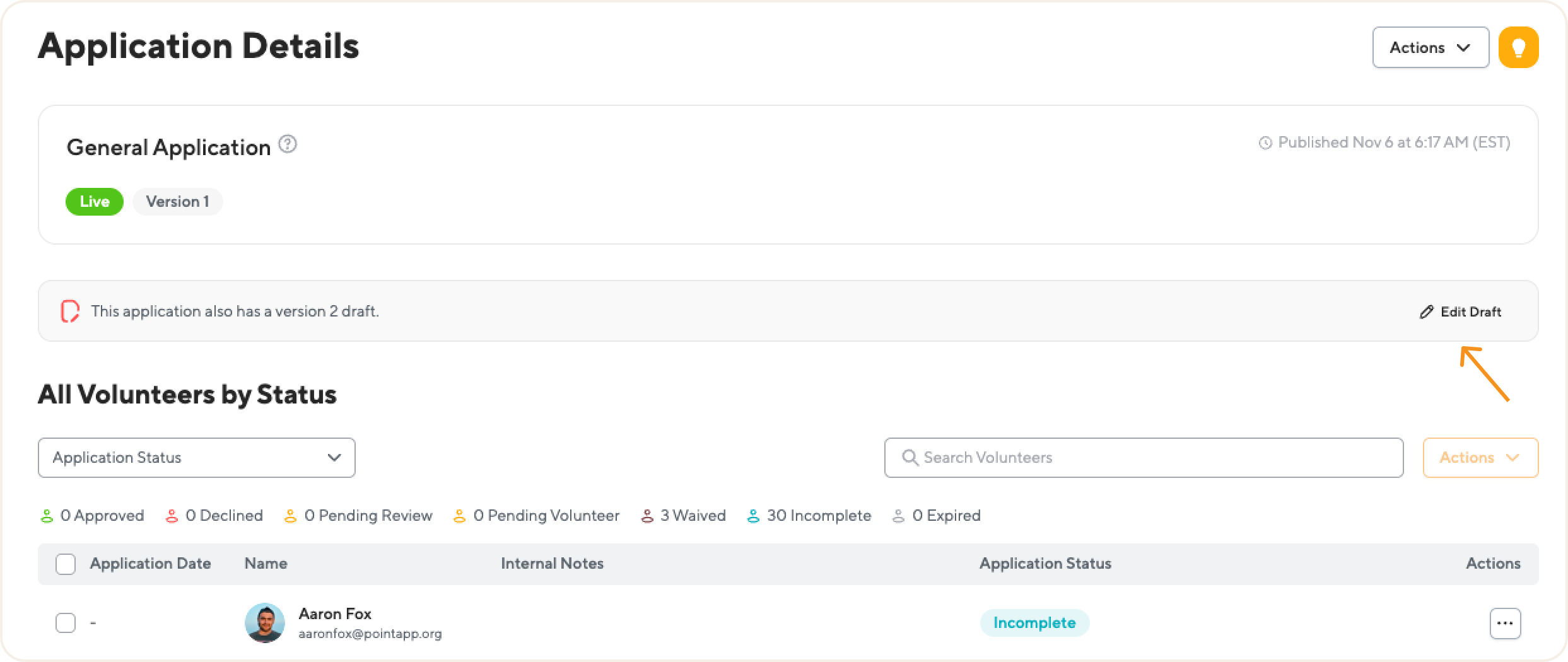
If your Application already includes a Draft Version 2 created previously by selecting “Save as Draft”—you will see this status clearly indicated on the Application Details page.
For example: “This application also has a version 2 draft.”
To continue editing, simply click the “Edit Draft” button on the Application Details page.
This means that the version 1 Application remains live for volunteers, while you have an unpublished version 2 draft available for updates.
Method 2: Unpublishing the Current Version to Create a Draft
This method is used if you need to perform major edits and are comfortable with the Application being temporarily unavailable to volunteers.
Steps to Unpublish and Re-publish
-
Navigate to the People menu and select the Applications option to access the Application Details page.
-
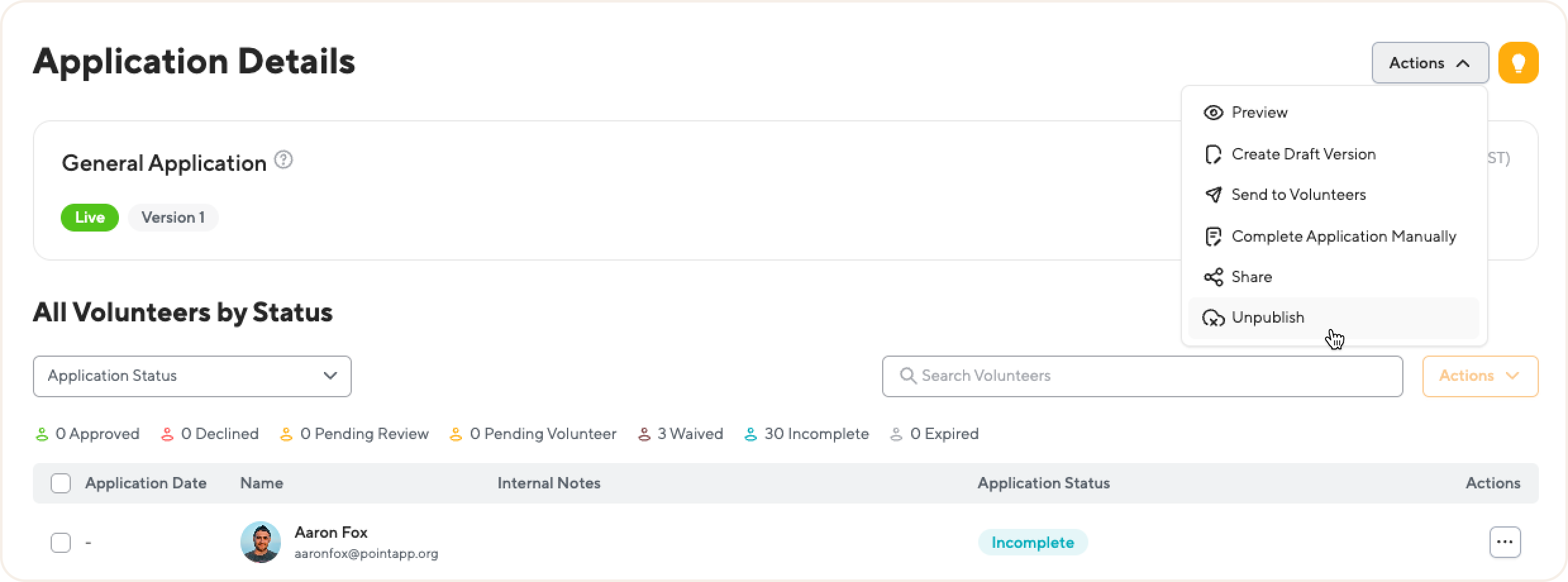
Find the “Actions” button in the upper right corner, click, and select the “Unpublish” option.
-
Note: This makes the Application inaccessible to volunteers.
-
-
The system converts the former live Application into a single editable draft.
-
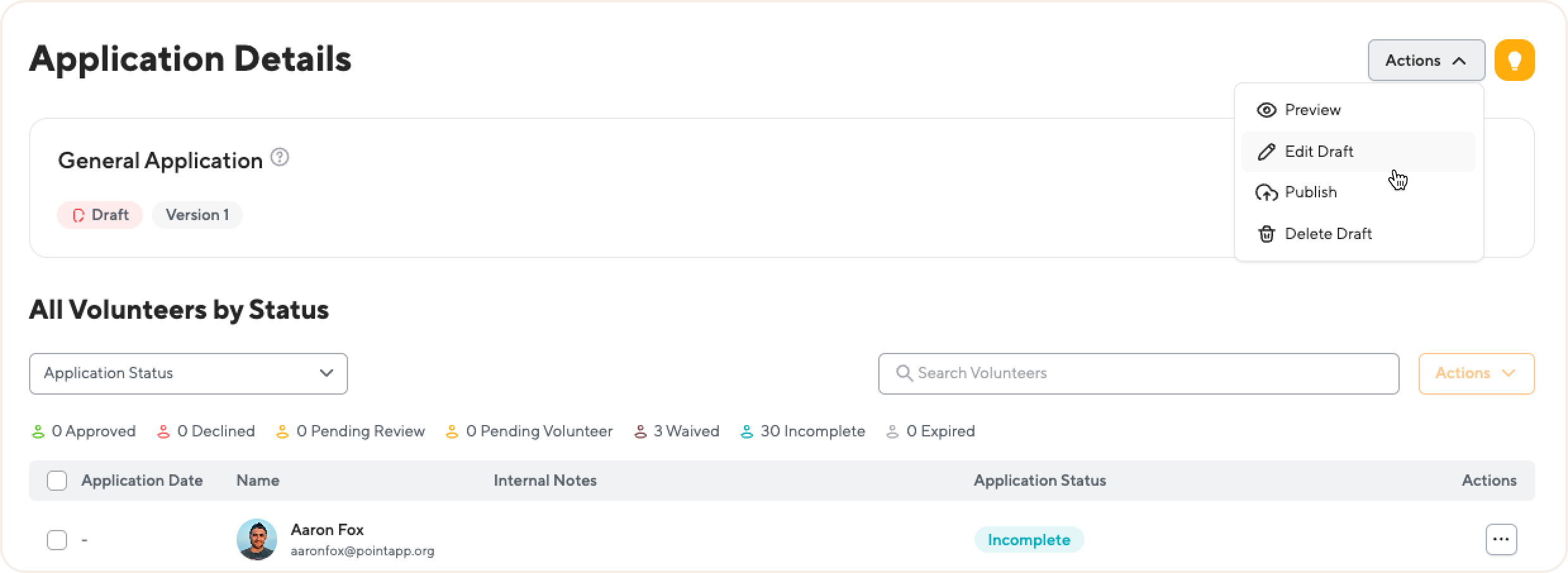
Click on the “Actions” button and select “Edit Draft”.
-
Update all Application steps as needed.
-
Click “Publish” to save your changes and make the updated version live again.