![Logo-2.svg]](https://support.pointapp.org/hubfs/Logo-2.svg)
In this article
- How to import contacts
- How to fill in the template
- How to import historical hours
- What happens to existing contacts
- How to read the import results
- FAQs
How to import contacts
The import is available on all plans.
Step 1: Open the import page
- In your admin dashboard, go to People, then click Contacts.
- Click Create Contacts in the top right corner.
- Select Import a CSV.
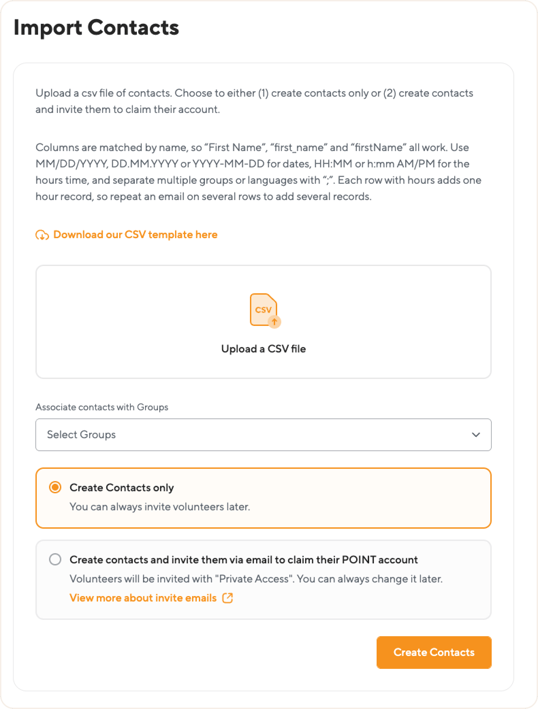
Step 2: Download and fill in the template
- On the Import Contacts page, click Download our CSV template here.
- Keep the first row with the column headers.
- Delete the example row and add your volunteers’ data starting from row 2.
-
Download Template here
-
View Google Sheets: POINT_Contacts_and_Hours_Template.csv
Step 3: Upload your file
Click Upload a CSV file and select your completed file.
Step 4: Add contacts to groups (optional)
There are two ways to add imported contacts to groups:
- All contacts in the file: use the Associate contacts with Groups field to select one or more groups. Every contact from the file will be added to these groups.
- Each contact separately: use the groups column in the file to list the groups for each contact.
You can use both options together.
Step 5: Choose whether to invite volunteers
- Create Contacts only: the contacts are added to your account without an invitation. You can always invite them later.
- Create contacts and invite them via email to claim their POINT account: the contacts are added, and each volunteer gets an email invitation to join your organization. Invited volunteers get Private Access, which you can change later.
Step 6: Create the contacts
Click Create Contacts. If you chose to invite volunteers, the button says Send Invite Emails. When the import is finished, you’ll see a summary of the results
How to fill in the template
Columns are matched by name, so First Name, first_name, and firstName all work. If a column isn’t recognized, POINT lists it under the uploaded file and skips it.
1. Contact Personal Information
| Column header | Format / Instructions | Example |
|---|---|---|
| Required. Each volunteer is identified by their email address. Make sure it has no extra spaces. | michael@example.com | |
| firstName | Text. | Michael |
| lastName | Text. | Scott |
| birthDate | MM/DD/YYYY, DD.MM.YYYY, or YYYY-MM-DD. Future dates are skipped. | 03/15/1965 |
| phone | Any valid phone number format. | (570) 555-0100 |
| tShirtSize | Text. | S, M, L, XL |
| dietaryRestrictions | Text. | Peanut allergy |
| languageSkills | Language names, separated by a semicolon. | English;Spanish |
| notes | Any additional information about the volunteer. | Prefers weekend shifts |
2. Address
| Column header | Format / Instructions | Example |
|---|---|---|
| addressLine1 | Street number and name. | 1725 Slough Avenue |
| addressLine2 | Apartment, suite, or floor (optional). | Suite 200 |
| city | City name. | Scranton |
| state | 2-letter state code. | PA |
| zipCode | 5-digit US zip code. Non-US postal codes are skipped. | 18505 |
3. Emergency contact
| Column header | Format / Instructions | Example |
|---|---|---|
| emergencyContactFirstName | Text. | Holly |
| emergencyContactLastName | Text. | Flax |
| emergencyContactEmail | Valid email address. | holly@example.com |
| emergencyContactPhone | Valid phone number. | (570) 555-0101 |
4. Groups
| Column header | Format / Instructions | Example |
|---|---|---|
| groups | Group names, separated by a semicolon. Group names must match the names in POINT exactly, including upper and lower case. | Group A;Group B |
5. General application status (Pro)
| Column header | Format / Instructions | Example |
|---|---|---|
| generalApplicationStatus | waived or incomplete. The status is applied to your organization’s published general application. If the value is different, it’s skipped, and the contact is still imported. | waived |
How to import historical hours
| Column header | Format / Instructions | Example |
|---|---|---|
| hours | The number of hours, as a decimal number. Not 2:45 or 2h 45m. | 2.75 (2 hours 45 minutes) |
| hoursDate | The date of the activity: MM/DD/YYYY, DD.MM.YYYY, or YYYY-MM-DD. | 09/20/2026 |
| hoursTime | The start time (optional): HH:MM (24-hour) or h:mm AM/PM. If empty, the hours start at midnight in your organization’s time zone. | 14:30 or 2:30 PM |
| hoursComment | A description of the activity (optional). | Food bank shift |
| hoursProgram (Pro) | The program name, exactly as it appears in POINT. If the program isn’t found, the hours are added to the organization. | Food Bank Program |
Each row with hours adds one hour record. To import several hour records for one volunteer, add a new row for each record and repeat the volunteer’s email in every row.
Example:
| hours | hoursDate | hoursComment | |
|---|---|---|---|
| jane@example.com | 5 | 01/10/2026 | Event setup |
| jane@example.com | 2.5 | 02/15/2026 | Cleanup crew |
What happens to existing contacts
POINT matches contacts by email, so the import doesn’t create duplicates. If a contact with the same email already exists:
- Historical hours and notes from the file are added to the contact.
- Profile details, like address or birth date, aren’t updated.
How to read the import results
After the import, you’ll see a summary:
- Contacts imported: the number of contacts added to your account.
- Some values were not saved: these contacts were imported, but some values were skipped. The table shows the email and the reason, for example, an invalid date format.
- Contacts were not created: these rows couldn’t be imported. The table shows the email and the reason.
Fix the values in your file and import those rows again if needed.
Note: Do you have issues inviting volunteers? You can check for errors here .
FAQs
Can I import custom fields?
No. Only the columns from the template are imported. Other columns are skipped.
Do I need to send invitations during the import?
No. You can choose Create Contacts only and invite volunteers later. Imported contacts keep the application status from the file.
Can I import historical hours for volunteers who are already in POINT?
Yes. Add them to the file with the same email. The hours are added to their existing contact.
Can our team help with the import?
Yes. Email us at support@pointapp.org. To learn about other ways to move your data, see How can I import my historic data into POINT from my previous platform?: https://support.pointapp.org/knowledge/how-can-i-import-my-historic-data-into-point-from-my-previous-platform
Questions? Email us at support@pointapp.org.