---
title: How can I export a volunteer's hours report as an admin?
description: Need to pull to pull a report of a volunteer's hours? You can easily pull their hours report from the volunteer's profile!
---
[Skip to content](https://support.pointapp.org/knowledge/how-can-i-export-a-volunteers-hours-report-as-an-admin#main-content)
![Logo-2.svg\]](https://support.pointapp.org/hubfs/Logo-2.svg)
- [Support](https://support.pointapp.org/knowledge)
- [Home](https://pointapp.org/)
- [Privacy Policy](https://pointapp.org/privacy-policy/)
- [Terms of Service](https://pointapp.org/terms-of-use/)
Open main navigation
Close main navigation
- [Support](https://support.pointapp.org/knowledge)
- [Home](https://pointapp.org/)
- [Privacy Policy](https://pointapp.org/privacy-policy/)
- [Terms of Service](https://pointapp.org/terms-of-use/)
- [Login](https://pointapp.org/)
[Login](https://pointapp.org/)
Hi 👋, how can we help?
- There are no suggestions because the search field is empty.
1. [Help Center](https://support.pointapp.org/knowledge?hsLang=en)
2. [Tracking and Reporting](https://support.pointapp.org/knowledge/tracking-and-reporting?hsLang=en)
3. [Hours](https://support.pointapp.org/knowledge/tracking-and-reporting?hsLang=en#hours)
# How can I export a volunteer's hours report as an admin?
## Need to pull a report of volunteer hours? POINT gives you two ways to export hours, depending on what you need.
**In this article:**
1. [Which export should I use?](https://support.pointapp.org/knowledge/how-can-i-export-a-volunteers-hours-report-as-an-admin#which-export)
2. [How to export hours for a single volunteer (from the contact profile)](https://support.pointapp.org/knowledge/how-can-i-export-a-volunteers-hours-report-as-an-admin#contact-profile-hours)
3. [How to export all hours (from the Hours tab)](https://support.pointapp.org/knowledge/how-can-i-export-a-volunteers-hours-report-as-an-admin#Hours-page)
4. [Need even more flexibility? See the Pro Hours Report.](https://support.pointapp.org/knowledge/how-can-i-export-a-volunteers-hours-report-as-an-admin#Pro-Hours-Report)
### Which export should I use?
| If you want to... | Use this export |
| --- | --- |
| Pull a quick report for one specific volunteer | Contact profile, then Hours tab, then Export |
| Export hours across your whole organization with basic filters | Hours tab, then Export CSV |
| Customize fields, include custom form questions, or save export history | Pro [Hours Report](https://support.pointapp.org/knowledge/how-to-generate-reports?hsLang=en#Hours-Report) |
The **contact profile export** is fastest for one volunteer and gives you a PDF option. The **Hours tab export** is best for everyday organization-wide exports with standard fields. The **Pro Hours Report** offers the most flexibility, with custom Additional Fields and saved report history.
### How to export hours for a single volunteer (from the contact profile)
If you only need to pull hours for one person, you can do it directly from their profile. This is the fastest way and gives you a PDF option, which is handy when a volunteer needs proof of service hours.
**Step 1: Open the volunteer's profile**
1. Under the **People** tab, go to **Contacts**.
2. Find the volunteer and click their name to open their profile.
**Step 2: Go to the Hours tab**
Inside the profile, click the **Hours** tab (next to **Opportunity Activity**). You'll see all the hours logged for this volunteer.
**Step 3: Export**
1. Click the **Actions** button in the top right.
2. Choose your format:
- **Export PDF**: a formatted PDF report. Great for sharing with the volunteer, school, or employer.
- **Export CSV**: a spreadsheet of the same data, useful for further analysis.
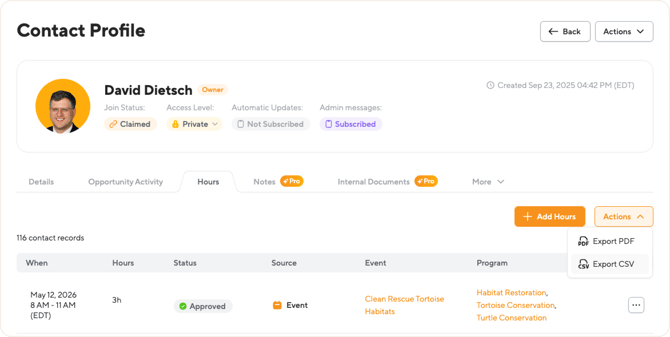
📝 **Note:** Only **approved hours** appear in the volunteer's hours report. There are no filters in this view, so the export includes the volunteer's full hours history.
### How to export a volunteer's hours report:
#### Want volunteers to export their own hours?
Volunteers can also pull their own hours report from their account. See [How can a volunteer print their hours?](https://support.pointapp.org/knowledge/how-can-a-volunteer-print-their-hours?hsLang=en)
### How to export all hours (from the Hours page)
This is the main way to export hours data. It lets you apply filters, narrow down by date or program, and pull a CSV with detailed records.
**Step 1: Open the Hours tab**
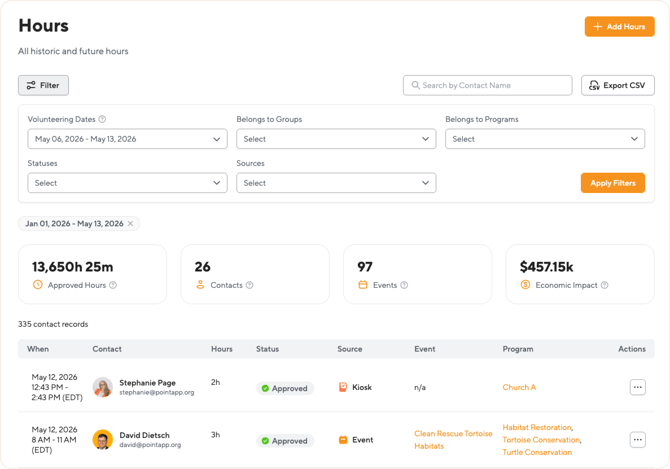
Under **Tracking**, select **Hours**. You'll see a list of all historic and future hours logged in your organization.
**Step 2: Apply filters (optional)**
Click the **Filter** button at the top of the page. You can filter by:
- **Volunteering Dates**: the time period the hours fall within.
- **Belongs to Groups**: only include hours from volunteers in specific groups.
- **Belongs to Programs**: only include hours tied to specific programs.
- **Statuses**: filter by approval status, such as Approved or Pending.
- **Sources**: filter by how the hours were logged (Admin, Event, Volunteer, or Kiosk).
You can also use the **Search by Contact Name** field to narrow down to a specific volunteer.
Click **Apply Filters** when you're done.
**Step 3: Export the CSV**
Click the **Export CSV** button in the top right. The file will download to your device.
📝 **Note:** The export reflects your current filters. If you want to export everything, click **Reset** before exporting.
#### Available fields in the CSV
The exported file includes the following columns:
- **Hours Start Time**: when the volunteer activity began.
- **Contact Name**: the volunteer's full name.
- **Contact Email**: the volunteer's email address.
- **Hours Duration**: total time logged for that record.
- **Hours Status**: Approved, Pending, and other statuses.
- **Source**: how the hours were recorded (Admin, Event, Volunteer, or Kiosk).
- **Event Name**: the event the hours are tied to, if any.
- **Programs Name**: the program(s) the hours are associated with.
- **Hour Comment**: any notes attached to the hours record.
### Need more flexibility?
If the Hours tab export does not give you all the fields you need, the **Pro plan** offers a more powerful [Hours Report](https://support.pointapp.org/knowledge/how-to-generate-reports?hsLang=en). It lets you:
- Choose exactly which fields to include in the export.
- Add **custom form fields** (like t-shirt size, language skills, or any application question).
- Apply more detailed filters.
- Save your export history and re-download past reports anytime.
---
Questions? Email us at[support@pointapp.org.](https://support.pointapp.org/knowledge/support@pointapp.org?hsLang=en)
- [Getting Started](https://support.pointapp.org/knowledge/getting-started?hsLang=en)
- [Account Basics](https://support.pointapp.org/knowledge/account-basics?hsLang=en#main-content)
- [General](https://support.pointapp.org/knowledge/account-basics?hsLang=en#general)
- [Subscriptions](https://support.pointapp.org/knowledge/account-basics?hsLang=en#subscriptions)
- [Support](https://support.pointapp.org/knowledge/account-basics?hsLang=en#support)
- [Volunteer Support](https://support.pointapp.org/knowledge/volunteer-support?hsLang=en#main-content)
- [About POINT](https://support.pointapp.org/knowledge/volunteer-support?hsLang=en#about-point)
- [Account Management](https://support.pointapp.org/knowledge/volunteer-support?hsLang=en#account-management)
- [Notifications and Emails](https://support.pointapp.org/knowledge/volunteer-support?hsLang=en#notifications-and-emails)
- [Opportunities](https://support.pointapp.org/knowledge/volunteer-support?hsLang=en#opportunities)
- [My Hours + Activity](https://support.pointapp.org/knowledge/volunteer-support?hsLang=en#my-hours-activity)
- [My Nonprofits](https://support.pointapp.org/knowledge/volunteer-support?hsLang=en#my-nonprofits)
- [My Background Checks](https://support.pointapp.org/knowledge/volunteer-support?hsLang=en#my-background-checks)
- [Tasks and Notifications](https://support.pointapp.org/knowledge/tasks-and-notifications?hsLang=en)
- [Organization](https://support.pointapp.org/knowledge/organization?hsLang=en#main-content)
- [Organization Profile](https://support.pointapp.org/knowledge/organization?hsLang=en#organization-profile)
- [Programs (Pro)](https://support.pointapp.org/knowledge/organization?hsLang=en#programs-pro)
- [Documents (Pro)](https://support.pointapp.org/knowledge/organization?hsLang=en#documents-pro)
- [Form Fields (Pro)](https://support.pointapp.org/knowledge/organization?hsLang=en#form-fields-pro)
- [Waivers (Pro)](https://support.pointapp.org/knowledge/organization?hsLang=en#waivers-pro)
- [Admins](https://support.pointapp.org/knowledge/organization?hsLang=en#admins)
- [Recruitment Tools](https://support.pointapp.org/knowledge/organization?hsLang=en#recruitment-tools)
- [Team](https://support.pointapp.org/knowledge/team?hsLang=en)
- [People](https://support.pointapp.org/knowledge/people?hsLang=en#main-content)
- [Applications (Pro)](https://support.pointapp.org/knowledge/people?hsLang=en#applications-pro)
- [Contacts](https://support.pointapp.org/knowledge/people?hsLang=en#contacts)
- [Groups](https://support.pointapp.org/knowledge/people?hsLang=en#groups)
- [Background Checks (Pro)](https://support.pointapp.org/knowledge/people?hsLang=en#background-checks-pro)
- [Messaging](https://support.pointapp.org/knowledge/messaging?hsLang=en#main-content)
- [Email](https://support.pointapp.org/knowledge/messaging?hsLang=en#email)
- [Auto Emails](https://support.pointapp.org/knowledge/messaging?hsLang=en#auto-emails)
- [Push Notifications](https://support.pointapp.org/knowledge/messaging?hsLang=en#push-notifications)
- [SMS](https://support.pointapp.org/knowledge/messaging?hsLang=en#sms)
- [Branding](https://support.pointapp.org/knowledge/messaging?hsLang=en#branding)
- [Opportunities](https://support.pointapp.org/knowledge/opportunities?hsLang=en#main-content)
- [Create Events](https://support.pointapp.org/knowledge/opportunities?hsLang=en#create-events)
- [Event Privacy](https://support.pointapp.org/knowledge/opportunities?hsLang=en#event-privacy)
- [Event Management](https://support.pointapp.org/knowledge/opportunities?hsLang=en#event-management)
- [Cohosting](https://support.pointapp.org/knowledge/opportunities?hsLang=en#cohosting)
- [Event Templates](https://support.pointapp.org/knowledge/opportunities?hsLang=en#event-templates)
- [Checkin Management](https://support.pointapp.org/knowledge/opportunities?hsLang=en#checkin-management)
- [Kiosk Stations (Pro)](https://support.pointapp.org/knowledge/opportunities?hsLang=en#kiosk-stations-pro)
- [QR Code (Pro)](https://support.pointapp.org/knowledge/opportunities?hsLang=en#qr-code-pro)
- [Manual](https://support.pointapp.org/knowledge/opportunities?hsLang=en#manual)
- [AutoCheckin](https://support.pointapp.org/knowledge/opportunities?hsLang=en#autocheckin)
- [Tracking and Reporting](https://support.pointapp.org/knowledge/tracking-and-reporting?hsLang=en#main-content)
- [Stats](https://support.pointapp.org/knowledge/tracking-and-reporting?hsLang=en#stats)
- [Reports](https://support.pointapp.org/knowledge/tracking-and-reporting?hsLang=en#reports)
- [Hours](https://support.pointapp.org/knowledge/tracking-and-reporting?hsLang=en#hours)
- [Integrations](https://support.pointapp.org/knowledge/integrations?hsLang=en#main-content)
- [Website Integration](https://support.pointapp.org/knowledge/integrations?hsLang=en#website-integration)
- [Background Check](https://support.pointapp.org/knowledge/integrations?hsLang=en#background-check)
- [Donor/CRM](https://support.pointapp.org/knowledge/integrations?hsLang=en#donor-crm)
- [SSO](https://support.pointapp.org/knowledge/integrations?hsLang=en#sso)
- [Networks](https://support.pointapp.org/knowledge/networks?hsLang=en)
- [Schools](https://support.pointapp.org/knowledge/schools?hsLang=en)
- [Recruitment Tools](https://support.pointapp.org/knowledge/recruitment-tools?hsLang=en)
- [Support](https://support.pointapp.org/knowledge)
- [Home](https://pointapp.org/)
- [Login](https://dash.pointapp.org/sign-in)
- [Privacy Policy](https://pointapp.org/privacy-policy/)
- [Terms of Service](https://pointapp.org/terms-of-use/)
[](https://pointapp.org)
pointapp.org
Copyright © 2026, POINT
```json
{
"@context" : "https://schema.org",
"@type" : "VideoObject",
"contentUrl" : "https://stream.mux.com/xvyXUj8DvBpbookuHSPXRphvHMIuZZCbFxN5RuzH02bc/capped-1080p.mp4",
"dateModified" : "2025-11-21T15:15:22.885Z",
"duration" : "PT9.983S",
"height" : 1572,
"name" : "export volunteer hours",
"thumbnailUrl" : "https://20675396.fs1.hubspotusercontent-na1.net/hubfs/20675396/export%20volunteer%20hours.mov/medium.jpg",
"uploadDate" : "2025-01-03T02:59:03.827Z",
"width" : 2908
}
```
```json
{
"@context" : "https://schema.org",
"@type" : "VideoObject",
"contentUrl" : "https://stream.mux.com/9s5dTXAwGY3Isw2qleWitjH02MGPmpBybmwIIsUBisdo/capped-1080p.mp4",
"dateModified" : "2026-05-13T16:26:49.444Z",
"duration" : "PT13.933S",
"height" : 1572,
"name" : "Screen Recording 2025-01-02 at 5.26.33 PM",
"thumbnailUrl" : "https://20675396.fs1.hubspotusercontent-na1.net/hubfs/20675396/How%20to%20export%20volunteer%20hours.mov/medium.jpg",
"uploadDate" : "2025-01-02T22:27:02.217Z",
"width" : 2908
}
```